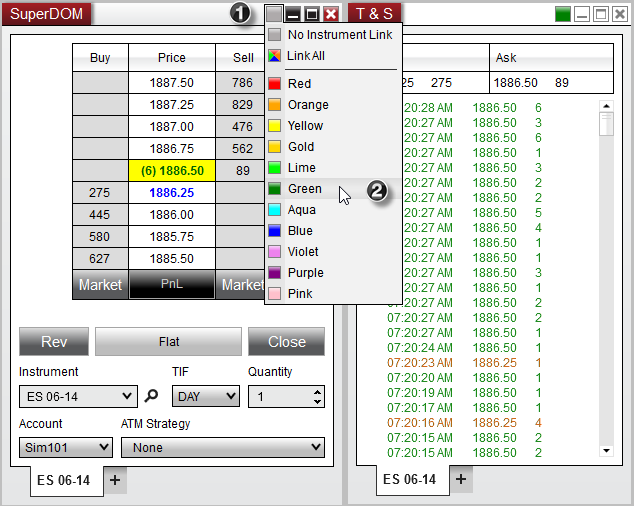
On your Ninja Mobile Trader VPS, use matching instrument-link colors to change symbols across NinjaTrader windows. Charts also have a separate interval link for synchronizing their timeframes.
We specialize in hosting NinjaTrader Desktop on Windows. Arrange your charts and order-entry windows in one hosted workspace, then access that same installation across supported devices. Our subscriptions include Windows licensing and 24/7 VPS support.
The image above comes from NinjaTrader’s window-linking guide. Its old contract and displayed prices are illustrative, not current market data.
Choose what should change together#
NinjaTrader’s window-linking controls sit at the upper right of supported windows.
| Your intended result | Link selection |
|---|---|
| Change symbols together, keep different chart timeframes | Matching instrument color; interval links off |
| Change chart timeframes together | Matching interval color on those charts |
| Keep two symbol groups separate | A different instrument color for each group |
Use two simple, single-series charts for the first check:
- Give both the same instrument-link color.
- Change the instrument on one chart. Check both instrument labels.
- Give both the same interval-link color only if they should share interval changes.
- Change one chart’s interval and check the other chart’s label.
The chart toolbar’s interval selector sits beside its instrument selector. A change from one-minute to five-minute bars is a simple example for checking the labels; no order is needed.
Adding several series inside one chart is a separate task covered by our multiple data-series guide.
Use Market Analyzer as the instrument selector#
To browse a watchlist, assign the same instrument-link color to your Market Analyzer and the chart or SuperDOM you want it to drive. Then click an instrument row in Market Analyzer.
NinjaTrader’s Market Analyzer linking instructions document both left and right row clicks sending the selected instrument to matching windows. Read the destination’s symbol and contract after switching.
Our Market Analyzer guide covers building the list and configuring its columns.
Use Link All deliberately#
Link All makes that window receive changes from any selected link color. Treat it as a receiver across groups, not an isolated color group. Test it by changing an instrument in each colored source window and watching the receiving window.
Check order-entry selections separately#
Matching colors are not confirmation of the trading account. Before using Chart Trader, verify the intended instrument, Account, TIF, Order Qty and ATM Strategy. NinjaTrader documents these as distinct order-entry selections.
Chart Trader shows orders and positions for the selected account and instrument. A changed view is not evidence that an order was canceled. Check the account’s order state in Control Center if a marker disappears after switching.
Our Chart Trader guide covers its controls and a simulation exercise. The linking check above requires no trade.
Save the verified arrangement#
Once the windows follow the intended selections, save the containing workspace from Control Center’s Workspaces menu. Use our workspace and chart-template guide for saving and reopening that layout.
When returning from another device, connect to the same NMT VPS and Windows user, then read the current instrument and account selections.
Keep your linked NinjaTrader workspace together
Use NinjaTrader Desktop on our Windows VPS across supported devices, with Windows licensing included and 24/7 VPS support.