Create the alert inside NinjaTrader Desktop running on your NMT VPS: choose a chart condition, a notification action and a rearm rule, then verify the result in Alerts Log.
We specialize in hosting NinjaTrader Desktop on Windows. Keep your charts and alert configuration in one workspace you can reach from supported devices, with Windows licensing included and 24/7 VPS support.
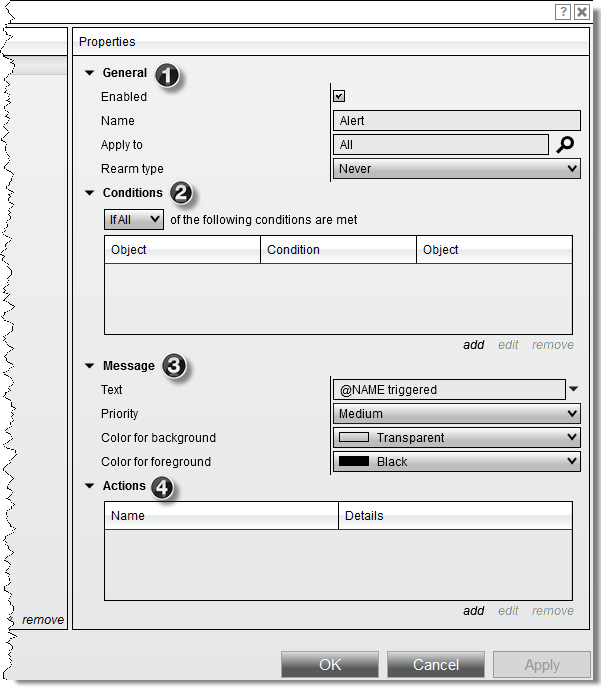
The official illustration above identifies the alert’s property groups. Its sample settings are an interface example, not a completed alert to copy.
Start from the chart you want to monitor#
Right-click that chart and select Alerts, then add a new alert. Give it a recognizable name, such as Chart-check.
NinjaTrader’s Alerts dialog works per window tab. Opening it from another chart will show that chart’s alerts instead. The data series, indicators and drawing tools available for conditions come from the chart where you opened it.
Use a chart receiving data in your supported simulation setup. Keep this exercise notification-only; it does not require an order or a trading strategy.
Build one condition you can inspect#
Under Conditions, select add to open the Condition Builder. Start with one comparison:
- On the left, select the chart’s Data Series, choose Close, and use Bars ago = 0.
- Select the greater comparison.
- On the right, select the same Data Series and Close, with Bars ago = 1.
- Confirm the condition.
This compares the current bar’s Close value with the previous bar’s Close. The current bar can still be forming, so the condition is not a claim that a completed bar closed higher. The example demonstrates the controls; it is not a trading signal.
For an indicator-based rule, check the selected indicator and plot. A missing indicator must first exist on the chart. A Cross Above or Cross Below comparison also has a look-back period, which NinjaTrader requires to be at least one bar; that differs from simply comparing two values.
Choose the message, action and rearm rule#
In alert properties, set a recognizable Message. Under Actions > add, choose Pop Up Dialog for the first check. Review every action and leave Submit Order out of this notification exercise.
Choose how the alert can fire again:
| Rearm type | Behavior |
|---|---|
| Never | One trigger, with no automatic rearm |
| On timer | Rearms after the configured number of seconds |
| On condition reversed | Rearms once the condition becomes false |
Start with Never for a single observable check. For a repeating rule, choose rearming that matches the condition you intend to monitor. A timer does not require the condition to reverse.
With several condition rows, If All requires every row to be true; If Any requires at least one. Review that choice before enabling the alert.
Check Enabled, then apply the configuration. For email later, add a Share action using the service you have tested through our NinjaTrader email-alert guide. SMTP setup belongs to that separate delivery step.
Verify the trigger in Alerts Log#
Open Control Center > New > Alerts Log. The Alerts Log guide identifies the instrument, source, priority, time and message recorded for each trigger.
Observe the condition, then look for the matching row and popup. Keep the time and message together so an older alert does not look like a new result. Double-click a row, or use Go To Alert, to return to its source.
If the row is missing, check the log’s instrument, priority and source filters. Also check the workspace: by default, the log receives alerts from its parent workspace. Check the chart’s condition and rearm setting before changing a working email service.
For a repeating test with On condition reversed, observe the condition become false and then true again. Confirm the next matching row. A log entry demonstrates a trigger; a received email is a separate delivery observation.
Keep the alert in the hosted workflow#
Save the workspace you want to retain using our workspace guide. Return to the same VPS and Windows user from your next device. Our mobile workflow guide explains leaving the viewing session while keeping the hosted application running.
A chart alert depends on the running platform and its data. For supported feed-disconnect recovery, we recommend Ninja Watchdog: it can automatically reconnect supported Rithmic or Tradovate connections, wait for live data and restore interrupted strategies. Alert rearming does not perform that recovery.
Keep your charts and alerts together on NMT
Run your NinjaTrader Desktop workspace on our Windows VPS and access the same installation from supported devices, with included Windows licensing and 24/7 VPS support.