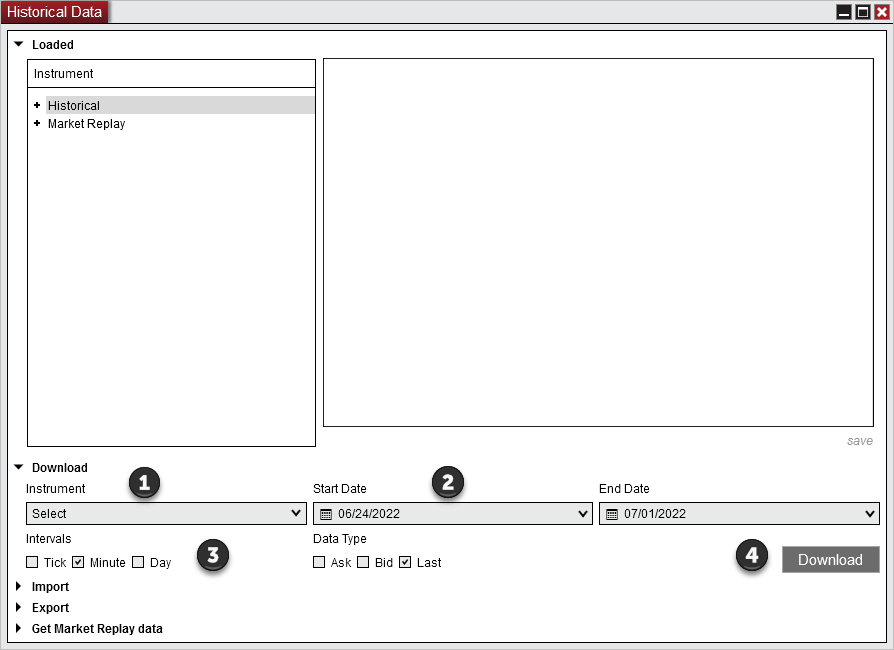
To refresh NinjaTrader history on your NMT VPS, use Historical Data > Download for a selected instrument and date range, or the chart’s Reload All Historical Data command when you intend the broader reload. Preserve needed local history first: both actions can replace stored data, and the chart command also affects other charts of the same instrument.
We specialize in hosting NinjaTrader Desktop on Windows, keeping your installation and saved history in the same workspace across supported devices. Windows licensing is included, with 24/7 VPS support.
The official NinjaTrader illustration above shows the Download controls. Its instrument and dates are examples, not current contract guidance.
Choose the action before replacing data#
If current quotes arrive but earlier bars are missing, first check the instrument, contract, chart history range and Trading Hours selection using our chart troubleshooting guide. A session filter or an unavailable provider date is a different problem from a stored-data gap.
| Your task | Appropriate starting point |
|---|---|
| Retrieve a known instrument, interval and supported date range | Tools > Historical Data > Download |
| Refresh the history feeding charts of an instrument | Chart menu: Reload All Historical Data |
| Load a supplied text file | Our historical-data import guide |
| Run a recorded simulation session | Our Market Replay guide |
Make data changes during a suitable maintenance window, with order-producing strategies and copiers stopped and existing orders accounted for. Preserve required price history using the Historical chart data selection in our backup procedure. Keep original imported files separately.
Download a bounded range#
NinjaTrader’s Download reference requires a connected provider that supplies the requested historical data.
- Open Control Center > Tools > Historical Data, then expand Download.
- Select one instrument, including the intended futures contract.
- Set Start and End to the needed dates within the provider’s available history.
- Choose the required intervals and price types, such as Minute and Last for the corresponding stored bars.
- Select Download and watch the status message at the bottom right. Keep the window open while the request completes.
Do not request an older range just to see whether the provider has it. NinjaTrader warns that a request extending beyond the provider’s historical coverage can cause loss of data already stored for those unsupported dates.
For futures, record the current Merge Policy before interpreting the result. The Download reference explains that back-adjusted and non-back-adjusted merging can select different contract months across rollovers. A download for only the selected contract requires DoNotMerge; changing merge settings also changes the dataset, so make that choice deliberately.
Understand the chart reload’s wider scope#
While connected to a provider with historical support, right-click the chart and choose Reload All Historical Data.
The official reload documentation says NinjaTrader reloads the base interval for all charts of the same instrument. A five-minute chart, for example, reloads minute data. This replaces locally stored cache and repository data; it is not a refresh limited to the one visible chart.
Review the other charts using that instrument before choosing this action. If your task is to request a specific range, use the Download controls above to state that range explicitly.
Verify the result and inspect persistent exclusions#
In the Historical Data window, expand the instrument, price type, interval and date to inspect the stored records. Compare the intended first and last dates and a few known bars, then check the chart with its original session and interval settings.
NinjaTrader’s editing reference explains an important exception: saved exclusions remain excluded after a historical reload. Inspect the Status column and the instrument’s Edit Logs if a particular row stays missing. Preserve that evidence and establish why an exclusion was saved before deliberately changing it; repeated downloads will not remove it.
If the expected range still does not appear, retain the provider name, instrument/contract, selected dates, interval, price type and exact error. Our log and trace guide explains how to collect the diagnostic files privately for support.
For an actual disconnected feed, we recommend Ninja Watchdog. It detects disconnects, reconnects supported accounts including Rithmic and Tradovate, waits for live data and can restore interrupted strategies. That recovery depends on provider availability; it does not supply missing historical coverage. Follow the troubleshooting guide above for the separate connection-recovery task.
Keep your NinjaTrader history with your hosted workspace
Use Ninja Mobile Trader VPS to access the same Windows installation and saved data from your supported devices.