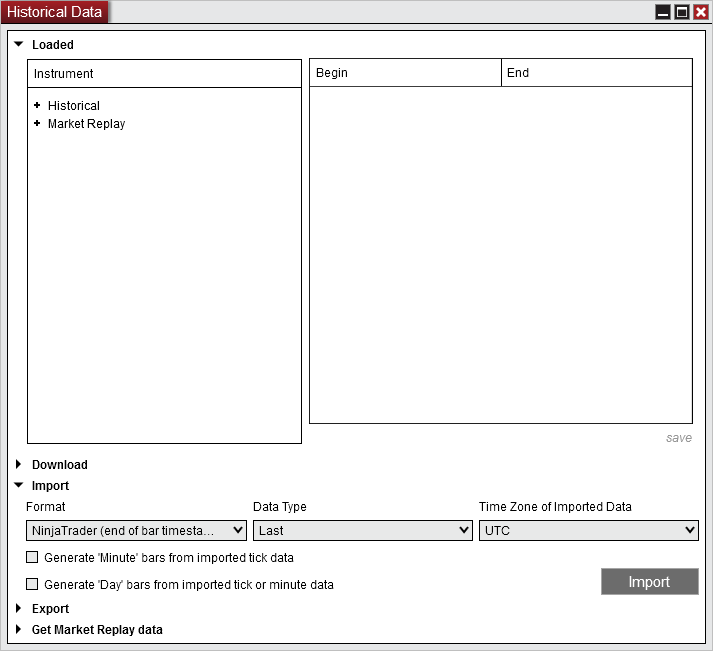
Import historical price files from inside NinjaTrader Desktop on your NMT Windows VPS, then verify the stored records before using them for analysis. Open Control Center > Tools > Historical Data to reach the platform’s historical-data tools.
We specialize in hosting NinjaTrader Desktop on Windows. Your installation and saved data stay in the same workspace you can reach from a supported PC, Mac, phone or tablet, with Windows licensing included and 24/7 VPS support.
The official NinjaTrader illustration above shows the import controls. For recorded Playback sessions, use our separate Market Replay guide.
Prepare the file and identify its instrument#
Keep an untouched copy of the supplied file and its accompanying format instructions. Place a working copy in a recognizable folder inside the VPS Windows session. Preserve needed existing data with our NinjaTrader backup procedure before changing stored history.
In Tools > Instruments, find the intended instrument. NinjaTrader’s instrument editor distinguishes the master name, asset class, tick size and provider symbol mappings. Predefined instruments generally need no changes. A provider’s symbol mapping is separate from the filename you supply for import; do not rename or reconfigure a working instrument merely to match an unfamiliar vendor filename.
Use this short intake record before importing:
| Record | What to write down |
|---|---|
| Source | Original filename, supplier and date received. |
| Instrument | NinjaTrader name and, for futures, the exact contract represented by the file. |
| Coverage | Expected first and last dates and a few rows to compare afterward. |
| Time basis | The supplier’s documented zone and whether bar times mark the beginning or end. |
If the file came from NinjaTrader’s own historical-data export, its timestamps use UTC and end-of-bar time. That export offers the instruments, intervals and price types already stored in the source installation. Keep those selections with the file when transferring it to your VPS.
Import a one-minute Last-price file#
NinjaTrader’s import reference specifies:
- For NinjaTrader format, name the text file with the exact platform instrument followed by
.Last.txt; use.Bid.txtor.Ask.txtfor those price types. - Futures and forex instruments must already exist in the database. An unknown instrument can otherwise become a stock.
- Minute imports require one-minute bars, one per line. Each row starts with
yyyyMMdd HHmmss, followed by open, high, low, close and volume, separated by semicolons. Daily and tick files have different layouts.
For the one-minute Last-price case:
- Expand Import and choose the NinjaTrader format matching the file’s start-of-bar or end-of-bar timestamps.
- Set Data Type to Last.
- Set Time Zone of Imported Data to the file’s source zone. NinjaTrader converts imported timestamps to local PC time.
- Leave optional bar generation unchecked for this first validation.
- Select Import, choose the working text file and select Open.
Prices incompatible with the instrument’s tick size are rounded during import. Optional tick-to-minute or tick/minute-to-day generation is available, but generated bars can differ from provider bars because of timestamp granularity.
Inspect the stored rows before opening a study#
Use the historical-data grid to expand Historical, the instrument, Last, Minute and the date. Select a date to view its records.
Compare the first and last intended dates, several prices and volumes, and timestamps after accounting for the source-zone conversion. Record the checks beside your original file. A completed import is only the starting point for this validation; an unexpected date or price deserves investigation before the data enters a study.
Keep this inspection read-only. The same grid can change values, add rows or exclude data; saved edits are tracked in its Status column and Edit Logs. Do not adjust records simply to make a chart look plausible.
If importing fails, inspect the Control Center’s Log tab. It lists the current day’s events by date, category and message; hovering over a truncated message reveals its text. Save the exact message, filename and selected settings before correcting the working copy.
Once the sample checks agree, use our Strategy Analyzer guide for the separate backtesting task. Keep the original file and validation note so a later test has a traceable data source.
Keep your NinjaTrader data and workspace together
Choose Ninja Mobile Trader VPS for a hosted Windows desktop you can access across your supported devices, with Windows licensing included and 24/7 VPS support.