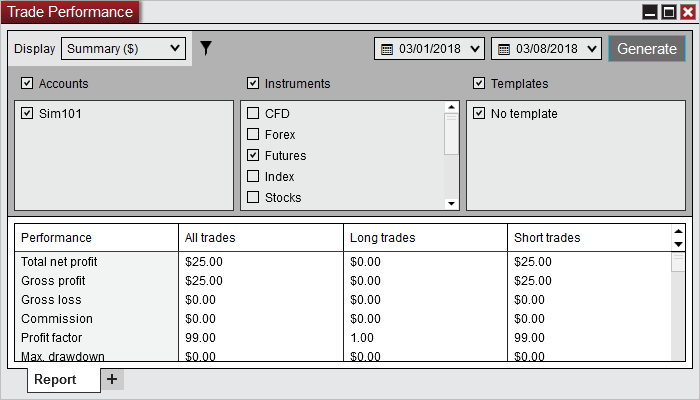
To export NinjaTrader Trade Performance from your VPS, generate the intended report, check its account filters, then right-click the data grid and choose Export. NinjaTrader supports CSV and Excel exports.
We specialize in hosting NinjaTrader Desktop on Windows. Keep your trading installation and report files in the same NMT workspace you can access from a supported PC, Mac, phone or tablet, with Windows licensing included and 24/7 VPS support.
The official-guide illustration above shows example filters and historical sample values. It is not an NMT customer result or a performance benchmark.
Generate the intended account report#
Open Control Center > New > Trade Performance inside the remote Windows desktop. This account-history tool reports recorded trading activity; use our Strategy Analyzer guide for historical NinjaScript backtests.
Following NinjaTrader’s report and filter controls:
- Set the From and To dates, then select Generate.
- Expand the funnel-shaped Filter control.
- Select the intended Accounts, Instruments and ATM Templates.
- Recheck that the account selection includes only the activity you want to export, especially when live and simulation records are available.
Filter changes update the display automatically. Changing dates and generating again can recheck previously excluded filter items, so repeat the account check afterward. Generate again when new trades have occurred within the selected range.
Filtering works on executions. A report can also include activity before the From date when needed to reconstruct a position from the last time it was flat. An earlier row is therefore not, by itself, proof of a wrong date filter.
Choose the view that answers your question#
The Performance Displays reference separates account statistics, individual fills and completed trades:
| View | Useful for |
|---|---|
| Summary | Reviewing the report’s aggregate statistics. |
| Executions | Examining individual recorded fills. |
| Trades | Reviewing matched entry/exit transactions; scaling can produce separate trades. |
| Analysis | Grouping results by a selected period, such as day or month. |
For Analysis, record whether the time base uses entry or exit time. Also note the display units, such as currency or ticks, so a saved report remains understandable later.
When several NinjaScript strategies share one account, Trade Performance pairs executions using the overall account position. It may not represent each strategy’s individual entry/exit pairing. For an individual strategy, use its performance view from the Strategies tab rather than treating an account export as a strategy-isolated result.
Export the grid and verify the saved file#
NinjaTrader’s data-grid instructions provide the export path:
- Right-click inside the data grid you want to save.
- Choose Export….
- Select CSV or Excel, then choose a recognizable filename and destination.
- Complete the export and locate the saved file in that destination.
For an execution-history export, select Executions first. If you need to rearrange the grid, drag column headers; Properties controls which columns are visible. Inspect the resulting file rather than assuming its columns match your intended handoff.
Save into a known folder in your VPS Windows session. Then open the file in an appropriate viewer and compare its account, instrument and a few entries with the on-screen report. Give the file a name that identifies the account, dates and view without exposing full account details in a public filename.
Keep a short note beside the file with the selected filters, display units and export time. If you later change the dates or regenerate the report, create a clearly named revision instead of silently replacing the earlier copy.
Resolve incomplete history before relying on totals#
NinjaTrader notes that missing historical executions can make performance data incorrect, and not every broker supplies that history. If expected fills are absent, compare the report with the relevant account records and confirm the selected filters before changing the database. Do not add guessed executions to make totals agree.
For practice reports, our Sim101 guide covers local simulation setup and preserving needed records before a reset. A spreadsheet export is a report copy; use the separate NinjaTrader backup procedure to preserve application data for recovery.
Keep your NinjaTrader workspace and reports together
Use Ninja Mobile Trader VPS to reach the same hosted Windows installation across your supported devices, with Windows licensing included and 24/7 VPS support.