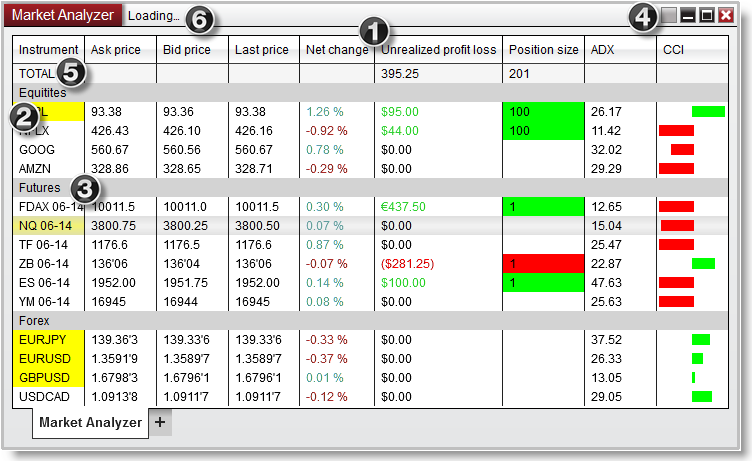
To build a watchlist on your Ninja Mobile Trader VPS, open NinjaTrader Desktop’s Control Center and select New > Market Analyzer. Configure the columns, add your instruments, then choose which values to highlight or rows to hide.
We specialize in hosting NinjaTrader Desktop on Windows. Keep your watchlist alongside your charts in one hosted workspace and access that same installation from a supported PC, Mac, phone or tablet. Our subscriptions include Windows licensing and 24/7 VPS support.
The image above is an illustration from NinjaTrader’s Market Analyzer guide. Its instruments, contracts and values are examples, not current quotes.
Configure the columns before adding instruments#
Market Analyzer displays real-time information across multiple instruments. It serves a different task from Strategy Analyzer’s historical backtests.
Right-click inside the window and choose Columns…. In the Columns editor, select a column from the available list and click Add. Select it in the configured list to edit its properties.
For an indicator, add Indicator, then choose the indicator you actually want in its Indicator property. Do not assume the initial selection is your intended study.
| Property | Check before applying |
|---|---|
| Indicator / Plot | The study and the specific output you want to display |
| Type / Value | The bar type and interval used for that calculation |
| Trading hours | The session used for the indicator |
| Load data based on | The historical data range needed by the study |
| Calculate | Whether updates are needed at bar close, on price changes or on each tick |
Click OK to apply the columns. Start with the information you need for a decision; add further studies after checking the initial watchlist.
Add individual instruments or an instrument list#
NinjaTrader recommends defining columns before adding instruments to reduce repeated historical-data loading.
Right-click the Market Analyzer and choose Add Instrument(s). Select an individual instrument or a predefined list. For futures, check the contract you intend to monitor. You can also type an instrument while the window is selected to open the instrument selector.
Use Add Label Row to organize groups. If you want to reuse the selected instruments elsewhere, Create Instrument List saves them as a named list.
Highlight a value or hide a row#
Cell and filter conditions have different effects:
- Cell condition: changes a cell’s color or displayed text when its value meets your rule.
- Filter condition: hides the entire instrument row when its value meets your rule.
To add either, return to Columns…, select the configured column, and find Conditions. Choose Cell or Filter, click Add condition…, then Add in the condition editor. Set the comparison, value and applicable instruments. For a cell condition, also choose its display treatment.
For example, a filter matching values below your chosen cutoff removes those rows from view. It does not mean “show only values below the cutoff.” Right-click the main window and enable Row Filter to apply filtering; switch it off to see the rows again.
Cell conditions are evaluated from top to bottom. Put a more specific threshold ahead of a broader rule that would otherwise match first. Check the visible result before relying on your color scheme.
Sort the watchlist and check its resource use#
Click a column header to choose ascending or descending order. To keep the ranking updated, enable Auto Sort in the right-click menu. NinjaTrader’s sorting guide places the update interval in the window’s Properties.
Watchlist size, indicator count and historical data all affect the workload. NinjaTrader’s Market Analyzer performance guidance notes that more history uses additional memory, tick-by-tick calculation uses more CPU, and frequent sorting can increase CPU demand.
Add instruments and indicators in manageable groups, observing Task Manager inside the VPS. Keep the calculation mode your study requires; reduce unnecessary history or sorting frequency before adding more work. Our NinjaTrader VPS sizing guide covers checking the complete workspace and choosing NMT capacity.
Save the workspace containing your watchlist#
Once the columns, instruments and display rules are useful, save the workspace that contains the Market Analyzer window. The workspace and chart-template guide explains what each saved item preserves.
When returning from another device, connect to the same VPS and Windows user. Your watchlist belongs to that hosted Desktop installation; opening NinjaTrader’s separate mobile app does not open it.
Keep your watchlist and charts together on NMT
Build your NinjaTrader Desktop workspace on our Windows VPS, then access it across supported devices with included Windows licensing and 24/7 VPS support.