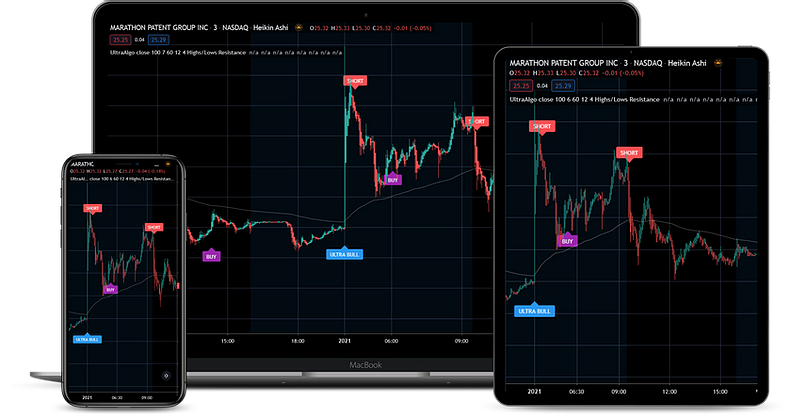
With Ninja Mobile Trader VPS, your home PC can be off while you access NinjaTrader Desktop from an iPhone, iPad or Android device. We specialize in hosting NinjaTrader Desktop on Windows: the server runs your workspace and installed add-ons, while your phone displays and controls them. Our subscriptions include the Windows Server license and 24/7 support.
Your NinjaScript strategies run in NinjaTrader on the Windows host where you start them. A phone connection does not move a strategy off a home PC. Set up the workspace on your VPS first, then use the handoff example below to check the running host.
Native mobile app or the Windows desktop?#
NinjaTrader’s current iOS and Android app includes charting, order and position management, and built-in and customizable indicators. Our hosted desktop gives you remote access to the Windows workspace and supported Desktop add-ons you install on your VPS. Check the specific account and tool you intend to use.
| Your task | Where to start |
|---|---|
| Use NinjaTrader’s supported mobile charts and order controls | The native NinjaTrader app or its web platform |
| View a Windows-only indicator, desktop copier or custom desktop workspace | Remote access to the Windows machine where it is installed |
| Install add-ons or rearrange a dense chart layout | A larger display connected to that same Windows desktop |
A mobile app and a remote desktop client are different products. Opening the native app does not open the Windows user session on your VPS.
Connect from iPhone, iPad or Android#
Start with NinjaTrader installed and configured inside Windows. The Windows VPS setup guide covers that preparation; the NinjaTrader sizing guide covers server resources.
Microsoft’s Windows App instructions document direct remote-PC connections:
- Install Windows App from your device’s official app store. Check the store’s current device compatibility.
- On iPhone or iPad, select + > PC. On Android, select + > PC connection.
- Enter the VPS hostname or IP address in PC Name, then save it. Give the connection a recognizable name if you use several servers.
- Tap the saved PC and authenticate with the server’s Windows credentials. These are separate from your NinjaTrader login. Confirm unexpected server-identity warnings with our support team.
- Inside the Windows desktop, check the NinjaTrader account selector, connection status and intended workspace before using order controls.
Direct remote-PC connections do not require signing in to Windows App itself. They still require access to the Windows computer.
Make desktop controls usable on a small screen#
Microsoft documents two touch input modes: Direct touch clicks where you tap; Mouse pointer moves an on-screen cursor. Try pointer mode for small desktop controls, and practice in simulation before relying on either mode.
- Context menus: in direct-touch mode, tap and hold for a right-click.
- Scrolling: in pointer mode, hold two fingers and drag up or down to emulate the mouse wheel.
- Display: choose a readable resolution in Windows App’s display settings. Android also offers custom scaling and orientation controls. More pixels can make an order panel harder to read on a phone.
Keep the account selector, quantity and confirmation controls visible. A tablet or larger screen gives dense charts more room; avoid placing several desktop panels side by side simply to fit the original monitor layout.
Example: check a VPS strategy with the home PC off#
Rehearse this with an existing, vendor-supported simulation configuration, with live automation excluded on both machines. The aim is to check which computer is running the strategy and reach it from your phone.
- Identify the hosted Windows desktop. From your larger screen, connect to your saved NMT VPS address. Inside that remote desktop, open Command Prompt and run
hostname. Record the returned computer name alongside the saved server address and Windows username. Microsoft documents this read-only computer-name command. - Record the strategy on that host. In the VPS’s NinjaTrader Control Center > Strategies, find the intended strategy, simulation account and instrument. Record its current state and connection. Read the Enabled column without tapping its checkbox: that control starts or stops a strategy.
- Leave the server workspace running. Disconnect the viewing client. For this simulation rehearsal, turn off the home PC from its own operating system, after confirming it is not running live automation. Do not choose Shut down or Sign out inside the remote VPS.
- Check from the phone. Connect directly to the same VPS address using the same Windows account. Run
hostnameinside remote Windows again as a cross-check, then locate the same strategy/account/instrument and inspect its current state. If the expected desktop or row is missing, check the connection details and grid filters before starting another instance. - Try the return path. Disconnect the phone’s viewing session and reconnect from the larger device when available. Use the NinjaTrader on Mac guide for Mac setup.
NinjaTrader’s Strategies tab documentation distinguishes running, disabled and waiting-until-flat states. An enabled strategy may still be waiting to complete its startup behavior; do not toggle or change synchronization settings just to make a status look different.
A strategy started from the Strategies tab does not appear on a chart. Check its row instead of assuming that the absence of a chart means it stopped. Keep a chart-based strategy’s existing setup intact; this handoff does not require changing how it was launched.
The useful result is access to the strategy on the VPS while the home PC is off. Quotes, positions and strategy state can change during the handoff, so inspect their current values. This is one hosted Windows installation accessed from several screens.
Windows Sign out closes session applications; Microsoft distinguishes it from disconnecting. Server restarts and configured session time limits can also interrupt a workspace.
If the phone disconnects or prices stop#
A phone losing Wi-Fi or mobile service can interrupt remote control without proving that NinjaTrader stopped on the VPS. Reconnect and check the application itself. A responsive Windows desktop also does not prove that market data is live or a strategy is enabled.
For disconnected NinjaTrader data feeds, we recommend Ninja Watchdog. It automatically reconnects supported accounts, including Rithmic and Tradovate, waits for live data, and can restore interrupted strategies. Install it on the Windows computer running NinjaTrader. It cannot make an unavailable provider recover; check account, order and position state when intervention is needed.
Screen lag and broker connectivity use different network paths: phone to VPS, and VPS to broker or data feed. Use the latency testing guide or disconnect troubleshooting guide to investigate the relevant path.
Keep your NinjaTrader Desktop workspace on our Windows servers and reach it from your supported mobile device: choose your Ninja Mobile Trader VPS plan.