Find NinjaTrader’s diagnostic files inside your VPS Windows session, under Documents > NinjaTrader 8 > log and trace. Collect them from the installation where the problem happened, with the incident time and time zone.
We specialize in hosting NinjaTrader Desktop on Windows. Your NMT workspace keeps the platform and its files together across supported devices, with Windows licensing included and 24/7 VPS support. This guide helps you prepare a useful support record from that workspace.
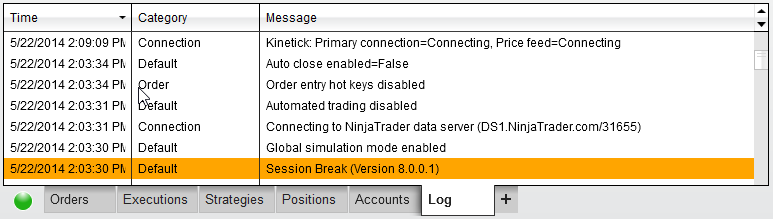
The official NinjaTrader illustration above shows the Log tab with historical sample events. It is an interface example, not a customer incident.
Record the incident before changing the setup#
A useful ticket identifies one incident and the surrounding context. Capture:
| Detail | What to record |
|---|---|
| Time window | Date, approximate start and end, and the time zone used for each observation. |
| Affected component | Remote Desktop access, Windows, NinjaTrader, a named connection or a specific add-on. |
| Visible evidence | Exact error text, screenshot, affected instrument or tool, and what still responded. |
| Version and recent change | NinjaTrader version from Help > About, relevant add-on version, and the last change before the issue. |
NinjaTrader’s Log() reference says its log-event timestamps use the time zone selected in Tools > Options > General, which can differ from the computer’s zone. Record the platform setting and the VPS clock’s zone; do not assume that a phone screenshot and a platform event use the same clock.
If the incident crosses midnight or a daylight-saving change, include both dates or the applicable UTC offset. Do not change the system clock to make the records line up.
Capture the visible Log entry#
The Control Center’s Log tab displays application and trading events for the current day.
- Open Log inside the affected VPS installation.
- Find the relevant time and read the Category and Message. Right-click Find… can search the grid.
- Hover over a truncated message to see its full text.
- If useful, right-click Export to save the grid as CSV or Excel.
Keep the timestamp and surrounding entries with the error. The grid export is a readable event summary; it does not replace the separate log and trace files requested by support. For an older incident, today’s visible grid alone may not contain the needed events.
If the error is in the NinjaScript compiler, also preserve its file, code and line information. Our compile-error guide explains that separate diagnostic list.
Prepare the requested files#
NinjaTrader’s current diagnostic-file instructions describe manual collection after closing the platform.
Plan that closure first. Account for working orders, positions and order-producing automation, and pause any tool configured to relaunch NinjaTrader automatically. If closing it would interrupt a workflow you need to maintain, tell support before collecting the archive.
For the documented full-folder collection:
- Close NinjaTrader, then open File Explorer inside the VPS.
- Navigate to Documents > NinjaTrader 8 for the Windows user running the platform.
- Compress the log folder into a ZIP, then repeat for trace. The current Windows instructions call this Compress To > ZIP File; some Windows versions use Send to > Compressed (zipped) folder.
- Confirm that both archives exist and open them to check their contents before attaching them to the support reply.
These are the remote computer’s Documents folders. Opening Documents on your Mac or local PC can collect files from a different installation.
Ask which dates the representative needs. If they request a limited date range, prepare that subset from copies in a separate folder, keeping log and trace files distinguishable. Preserve the originals and enough surrounding context; do not delete old files or rewrite timestamps to shorten the bundle. If you cannot identify the relevant files, provide the incident window and ask support to specify the selection.
A diagnostic bundle is not a recoverable copy of your full setup. Use our separate NinjaTrader backup guide for that task.
Keep the handoff private and specific#
Review screenshots and copied files for account identifiers, user paths and other information you do not intend to share. Send diagnostics through the support team’s private channel, not a public forum or unrestricted file link. Do not include passwords, license keys or an entire configuration folder just because they are nearby.
Retain unmodified originals. If a representative needs information you would otherwise redact, agree on a private transfer method rather than silently removing evidence from the only copy.
Include a short note with the attachments:
- Incident date, start/end time and time zones.
- What failed and what still worked.
- NinjaTrader/add-on versions and exact error.
- Which files or dates the archives cover.
- Changes already attempted and their results.
NinjaTrader’s Help > Message Support route sends diagnostics to NinjaTrader, not NMT. For an existing NinjaTrader case, follow its instructions and keep Log and Trace Files selected. Our VPS team handles the hosted Windows environment; retain the same incident record when a platform or add-on specialist needs to investigate its component.
For deciding what stopped before a reconnect or restart, use our NinjaTrader VPS troubleshooting guide.
Get help with your NMT workspace
Contact our 24/7 VPS support team with the incident window and what you observed. We can investigate hosted desktop access and performance, then identify which diagnostic files are useful for the next step.