Diagnose NinjaScript compile errors inside the NinjaTrader installation on your Ninja Mobile Trader VPS. Read the named file and error code before changing another package. NMT specializes in hosting NinjaTrader Desktop on Windows, keeping your scripts, add-ons and charts in one workspace you can reach across supported devices.
That gives you one installation to maintain when switching between a PC, Mac, phone or tablet. Use a larger screen for the editor and its diagnostic rows. Windows licensing is included, with 24/7 VPS support.
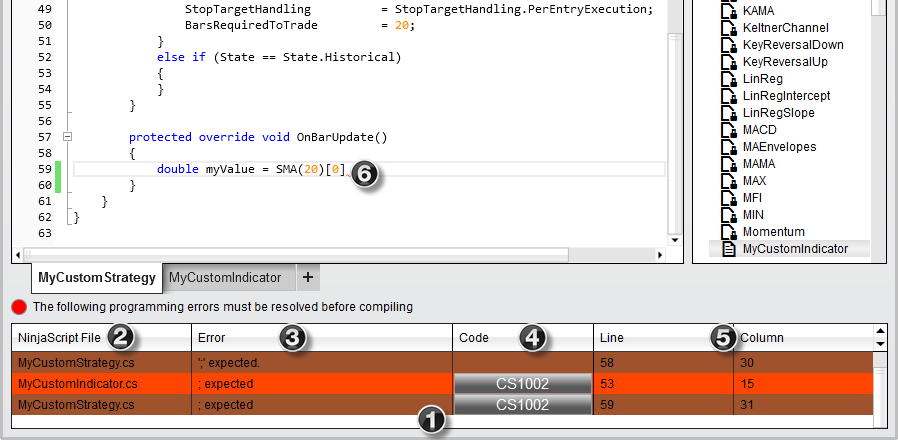
The official NinjaTrader illustration above shows the editor’s error list and a historical code example. It is an interface reference, not a test performed on a customer VPS.
Find the file that actually failed#
NinjaTrader’s compile-error guide explains that compilation covers the entire NinjaScript library. An older broken script can therefore block a new import.
Before changing scripts, stop order-producing automation and exclude live execution during a planned maintenance window. Preserve the installation using our NinjaTrader backup guide, including the custom NinjaScript files you need.
Follow the platform’s programming-error procedure:
- In the VPS Control Center, open New > NinjaScript Editor.
- Press F5, or right-click in the editor and choose Compile.
- Read the diagnostic rows at the bottom. Record the file, description, code, line and column.
- Double-click a row to open the relevant file at the reported location. Select the error-code link for its documentation.
Keep the original list before making changes. A filename different from the package you just imported is useful evidence; it is not a reason to remove that file immediately.
Match the error to the next check#
The code narrows the investigation. It does not prove that every occurrence has the same cause.
| Diagnostic | Useful next check |
|---|---|
| CS0103: an unknown name | In code you maintain, check spelling and whether the variable or property exists in that context. |
| CS1002: a statement ending | Inspect the reported statement and nearby syntax for a missing semicolon. |
| CS0234, CS0246 or CS0006 | Check the full message and the referenced component. NinjaTrader’s guidance for these codes includes missing third-party DLL references. |
NinjaTrader documents CS0103 and CS1002 separately. A small spelling correction in your own development copy is different from modifying a vendor’s protected or unfamiliar code.
For a vendor package, retain its name and version and ask the developer which supported component or update resolves the exact diagnostic. Avoid importing several unrelated packages to see whether one makes the error disappear.
Restore a confirmed DLL reference#
Use this path only when the missing dependency has been identified and the correct, trusted DLL is available. NinjaTrader’s reference-error instructions describe:
- Right-click in the NinjaScript Editor’s main area and choose References.
- Select Add.
- Choose the confirmed third-party DLL.
- Compile again and compare the new diagnostic list with the saved one.
The documentation cautions against choosing the companion filename with an X86 or X64 suffix for that reference. Use the vendor’s supported file and installation instructions; do not select a similarly named binary from an arbitrary download.
If the required file is missing or its version is uncertain, get the correct package from the developer first. Adding a reference cannot supply a DLL that is not present.
Temporarily exclude an unused custom script#
Exclusion can isolate your unfinished development script when it is not needed by the current setup. It preserves the source file but makes the script unavailable for use while excluded.
Check dependencies first. Another script that calls the excluded component may then fail to compile. Do not use this technique to hide an error in a strategy, indicator or copier the workspace needs.
NinjaTrader’s NinjaScript Explorer guide gives the controls:
- Right-click the specific custom script and select Exclude From Compilation. Its entry becomes faded.
- Compile and inspect the resulting list.
- To restore inclusion, right-click that entry and clear Exclude From Compilation, then compile again.
Choose the individual script deliberately. Exclude All From Compilation has a broader effect, and Remove deletes the source instead of temporarily excluding it. Locked system scripts cannot be excluded through this control.
Verify the repair before resuming#
Record the exact change and whether the compiler now reports errors. A clean compile confirms a build; it does not validate licenses, chart settings, strategy behavior or order routing.
For normal package installation and the first chart check, continue with our NinjaScript add-on guide. For a strategy you created, use the Strategy Analyzer procedure and supported simulation checks before following the automation continuity checklist.
If errors remain, send the relevant developer the NinjaTrader version from Help > About, package version, full diagnostic rows and the change already attempted. Keep license details private. Contact NMT for help accessing the hosted Windows desktop; code and add-on compatibility questions need the component’s developer.
Keep your NinjaTrader setup together on NMT
Maintain your Desktop installation, custom tools and saved workspace on a Windows VPS you can return to from supported devices.