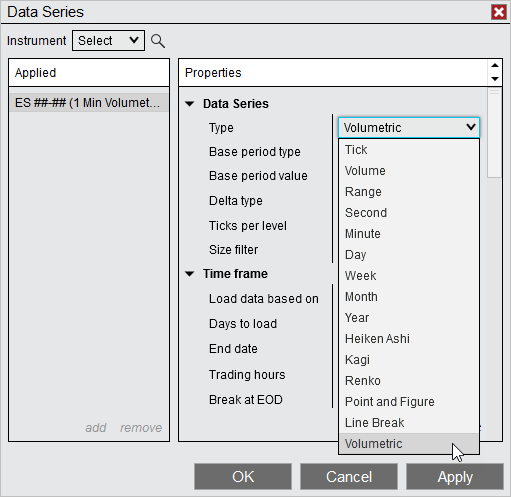
Build your NinjaTrader Volumetric chart inside your Ninja Mobile Trader VPS desktop, where your platform, indicators and saved layout stay together. We specialize in hosting NinjaTrader Desktop on Windows, so you can return to that installation from your supported PC, Mac, phone or tablet.
Volumetric bars show executed volume at price levels within each bar. This guide gets that chart configured and readable; it does not prescribe entry signals. The official NinjaTrader illustration above shows where to select the bar type. Its sample instrument is not a contract-selection recommendation.
Confirm access and historical data first#
Volumetric bars belong to NinjaTrader’s Order Flow+ feature set. In your NinjaTrader Dashboard, open Settings > Plans and confirm that Order Flow+ is active through your plan or add-on. See NinjaTrader’s current entitlement instructions, including the account-linking steps for existing Lifetime license holders.
If access was just activated, NinjaTrader requires a fresh Desktop login. Schedule that logout/login when your live trading and automation are stopped.
For historical BidAsk classification, NinjaTrader requires historical bid/ask tick data from the provider. A provider offering only historical last-trade ticks can instead support UpDownTick, which classifies using price changes. These are different calculation methods. Check the provider data table and the history available for your instrument.
Create the chart in your hosted desktop#
Open NinjaTrader inside the VPS. Start with a single chart so you can check its settings before adding it to a larger layout.
- Select New > Chart in the Control Center and choose your intended instrument and futures contract, where applicable.
- In Data Series, set Type to Volumetric.
- Choose the Base period type and Base period value, then the Delta type supported by your data and intended analysis.
- Review the trading-hours template and history range, then select OK.
NinjaTrader documents opening a chart and the Volumetric bar setup. Reopen Data Series when adjusting the controls below.
Separate calculation from appearance#
The similarly named controls do different jobs. NinjaTrader’s parameter reference defines them:
| Control | What it changes |
|---|---|
| Delta type | Classifies volume using BidAsk or UpDownTick. |
| Ticks per level | Groups price levels; the default of 1 keeps each level separate. |
| Size filter | Limits the trades considered in the Volumetric calculation. The default is 0. |
| Chart style type | BidAsk displays separate sell/buy columns; Delta displays their net difference per cell. |
| Size display filter | Shows only numbers above its threshold; this is a visual filter. The default is 0. |
| Hide text | Hides cell numbers. |
| Show bar statistics | Adds a statistics panel beneath the bars. |
You do not need to enable Tick Replay merely to build Volumetric bars. The bars already use a one-tick series. The checkbox lets compatible indicators or strategies access Tick Replay data; follow their requirements separately. Our NinjaTrader VPS sizing guide covers that additional workload.
Check missing values before changing VPS capacity#
Use one change at a time so you can identify its effect:
- Zero volume cells: review the Size filter. A threshold that excludes the available trades can produce zeros.
- Numbers missing but bars visible: check Hide text and Size display filter, then adjust chart scaling for readability.
- Historical BidAsk detail unavailable: confirm the provider’s tick-history capability and coverage. More server memory does not supply missing market data.
- Imbalance controls unavailable: check Chart style type. Imbalance display belongs to BidAsk, not Delta style.
If the correctly configured full workspace repeatedly stalls, use the sizing guide’s workload checks. Keep the chart’s data, interval and history consistent while investigating.
Save a setup you can recognize on another device#
Before saving, record your choices:
| Setup record | Your value |
|---|---|
| Instrument/contract and provider | Fill in |
| Base period type/value and Delta type | Fill in |
| Trading hours and history range | Fill in |
| Ticks per level and both filters | Fill in |
| Chart style, visible statistics and required indicators | Fill in |
Use our workspace and chart-template guide to save the layout. Reconnect to the same NMT server and Windows user from your next device, and check that the numbers remain readable at its screen size. Your chart runs in the hosted Desktop installation; remote access does not move it into NinjaTrader’s separate mobile app.
Keep your NinjaTrader charts in one hosted workspace
Choose Ninja Mobile Trader VPS for Windows hosting built around your NinjaTrader Desktop workflow, with Windows licensing included and 24/7 VPS support.