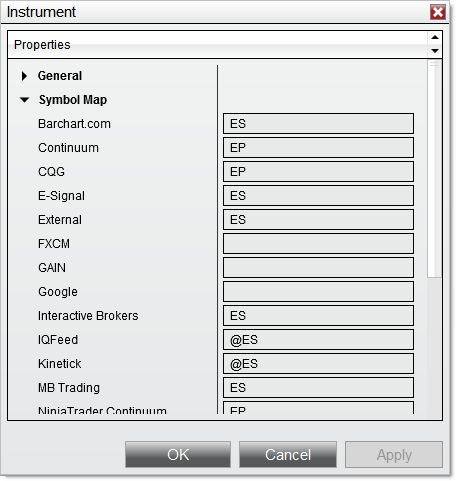
In your Ninja Mobile Trader VPS, open NinjaTrader’s Tools > Instruments, find the existing instrument, and check the symbol map for the connection you actually use. Most predefined instruments already have their mappings. Change a definition only when the platform or provider’s current instructions establish what needs correcting.
We specialize in hosting NinjaTrader Desktop on Windows. Maintaining the instrument definition in that hosted installation keeps it with the charts and tools you access from your supported devices.
The official illustration above shows the Symbol Map controls. Its example values are not a current mapping recommendation for your account.
Find the existing instrument first#
NinjaTrader’s Instruments window stores a master instrument with the settings used by its connectivity providers. Its predefined database updates when the application starts.
Before adding anything:
- Open Tools > Instruments in the Control Center inside your VPS session.
- Narrow Type to the relevant asset class.
- Search by the instrument name in uppercase, or by its description in lowercase.
- Inspect the results and open the matching instrument with a double-click or edit.
Those search behaviors are documented in Searching for Instruments. Check the full product identity, not just a familiar abbreviation. An existing definition is preferable to creating another instrument for the same product.
Separate the definition from the provider symbol#
The Instrument editor contains two different kinds of information:
| Area | What you are checking |
|---|---|
| General | Master name, asset class, currency, exchange, point value, tick size and default trading hours |
| Symbol map | The identifier used by the particular broker or data-feed connection |
Point value and tick size describe the product. A provider symbol identifies it to a connection. Changing one does not establish that the other is correct.
Use current NinjaTrader or provider documentation for the exact product and connection. Do not copy a symbol from a different feed, substitute a nearby contract, or guess financial specifications from the chart’s appearance.
Keep this small record before a justified edit:
| Check | Your verified value |
|---|---|
| Master instrument and product | |
| Provider/connection requiring the mapping | |
| Existing mapping | |
| Required mapping and supporting source | |
| Date checked and result |
If an instrument truly is missing, NinjaTrader’s Managing Instruments guide documents new, entering its parameters and provider mappings, then OK. The master name accepts letters, digits and underscores. Confirm the complete definition before adding it; the usual predefined instrument needs no manual recreation.
Verify the specific change#
Arrange the edit while strategies and copiers using that instrument are stopped, with working orders and positions accounted for. Preserve the original values so the change is traceable.
After saving, select the intended instrument in a chart and verify that the expected connection supplies its data during the relevant session. With several connections open, NinjaTrader can use different providers for real-time and historical data. Check its connection preferences before attributing the result to the mapping you edited.
A populated chart is a data check. Separately confirm the intended account and instrument in any strategy or copier before resuming it; rehearse order behavior only in an explicitly supported simulation environment.
Keep adjacent tasks with their own procedures:
- Changing a futures expiry: use our contract rollover guide. An expiry change is different from repairing a provider’s symbol mapping.
- Login, account or connection setup: use our Rithmic and Tradovate connection guide.
- Loading a historical text file: use our historical data import guide for filename, format and time-zone checks.
If the result still differs from the provider’s documented behavior, retain the exact instrument, connection, changed field and error message for support. That record is more useful than changing several unrelated instrument settings at once.
Keep your NinjaTrader setup together on NMT
Our hosted Windows desktop gives you one place to maintain NinjaTrader and its tools across supported devices, with Windows licensing included and 24/7 VPS support.