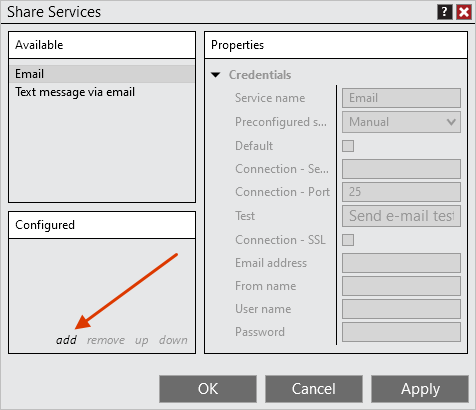
Configure email inside the NinjaTrader Desktop installation running on your NMT VPS. Start with an Email Share Service, confirm that a test reaches your mailbox, then check the notification that should use it.
We specialize in hosting NinjaTrader Desktop on Windows. Your NMT workspace keeps the application and its configuration together across supported devices, with Windows licensing included and 24/7 VPS support. Setting up delivery in that workspace lets you receive its messages without keeping the remote screen in front of you.
The official NinjaTrader illustration above shows where to add Email. Its blank fields and sample port are an interface example, not settings to copy.
Add the email service in the hosted desktop#
In Control Center > Tools > Settings > General, open Share services. Select Email and add it. Older help pages call Settings Options.
Using NinjaTrader’s email-service settings, configure:
- A recognizable Service name.
- Your mail provider’s SMTP server, supported port and required SSL setting.
- The sender email address, username and the credential your provider permits.
- Default if this account should handle default email sharing. Only one account per service type can be default.
NinjaTrader documents that SMTP port 465 is unsupported. Check the provider’s current supported settings before choosing another port. A preconfigured provider entry supplies typical settings; verify authentication requirements separately.
Use the service’s Test control, then check the receiving mailbox and spam folder. Record the test time and any error.
Check authentication before changing the VPS#
A valid mailbox login does not by itself establish that an application can submit mail through that provider. Check its current SMTP access instructions for your account type.
For example, Google’s app-password guidance requires 2-Step Verification and notes that app passwords may be unavailable for organization accounts, Advanced Protection or accounts configured with security keys only. Where an app password is permitted and needed, use that credential instead of guessing that the normal account password will work. Google revokes app passwords after a Google Account password change.
Keep two-step verification enabled. If the account does not offer an allowed authentication method for this service, ask the mail provider or organization administrator about a compatible configuration.
Keep credentials out of alert text, screenshots and support tickets. Revoke a dedicated app password when you stop using that configuration. After changing credentials, repeat the delivery check.
Separate a shared message from an alert condition#
After the service test succeeds, you can check a manual message through NinjaTrader’s Share menu.
Right-click a window that supports sharing and choose Share > Price…, if available. In the Share dialog, select the configured service and review the message and recipient before sending a harmless test to yourself. Available sharing choices depend on the window.
Use a short, recognizable test message. Avoid Position, Tab Contents or Window sharing for this check: those choices can include position information or screenshots you did not intend to disclose.
A received manual message confirms that path at that time. It does not show that a particular chart or watchlist condition has fired. NinjaTrader’s alert actions include Share, which sends a message or screenshot through a selected service. Check the intended alert’s action separately; do not submit an order to test email.
Our Market Analyzer guide covers watchlist rows and columns. Keep that configuration separate from troubleshooting the mail service.
Decide whether you need Control Center log emails#
General settings also has Email log alert messages to. It forwards alert messages from the Control Center Log tab and requires a default Email service. Leaving it blank disables this feature.
This is not a promise to email every log row, trade or chart alert. Check the specific event and notification you need rather than treating one successful email as proof of complete coverage.
Use the result to choose the next check#
| Observation | Next check |
|---|---|
| The service test fails | Capture the exact error and time. Recheck server, supported port, security and provider authentication requirements. |
| A test is reported sent, but nothing arrives | Verify the recipient and inspect spam, quarantine or the mail provider’s delivery information. Submission and receipt are different observations. |
| A manual message arrives, but the expected alert does not | Inspect that alert’s condition and selected Share action. Confirm the intended service and recipient before changing a working SMTP configuration. |
Keep a small record: service name, test time and time zone, intended recipient, observed receipt and exact error. Exclude passwords. For a persistent failure, our log and trace guide explains how to prepare a private diagnostic handoff.
NinjaTrader must be running to generate its own messages. Email setup is not an external check that Windows or the platform remains available. Follow our mobile workflow guide when leaving the remote viewing session.
For automatic recovery from supported Rithmic or Tradovate disconnects, we recommend our partner Ninja Watchdog. Its recovery and monitoring functions are separate from this NinjaTrader email-service setup.
Keep your NinjaTrader setup in one hosted workspace
Choose an NMT Windows VPS for your Desktop platform, workspaces and configured tools, with access from supported devices and 24/7 VPS support.