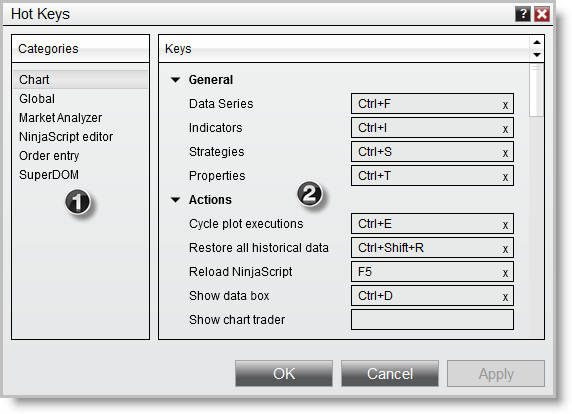
To set NinjaTrader hotkeys on your Ninja Mobile Trader VPS, open Control Center > Tools > Hot Keys inside the remote Windows desktop. Assign the action there, then check that your local keyboard reaches the intended NinjaTrader window.
We specialize in hosting NinjaTrader Desktop on Windows. Your application settings stay with that hosted installation when you access it from another supported device; keyboard handling still depends on the client you use. Our subscriptions include Windows licensing and 24/7 VPS support.
The official NinjaTrader illustration above shows the Hot Keys editor. Read your installed assignments instead of assuming its example combinations are yours.
Assign one shortcut and check its window#
NinjaTrader’s Hot Keys overview separates application tasks from order actions. Start with a non-order action, such as showing a chart’s Data Box.
- In Tools > Hot Keys, choose the relevant category, such as Chart.
- Find the action. Click its assignment field and press the combination you want to record. Esc cancels recording.
- If NinjaTrader reports a conflicting assignment, review it before accepting a replacement. Choose OK to apply.
- Select the intended chart and try the shortcut once. Check the visible result.
The assignment reference also documents the field’s X for removing an assignment and right-click > Print Hot Keys for a reference list.
Most hotkeys depend on the selected NinjaTrader window. Global assignments work across NinjaTrader windows, but a modal dialog disables all hotkeys while it is open. A shortcut that works on a chart therefore need not work while Control Center or a dialog has focus.
Separate remote keyboard routing from the application setting#
If typing works but a combination acts on your local computer, check the client before changing NinjaTrader’s assignments.
Windows Remote Desktop Connection: before connecting, open Show Options > Local Resources > Keyboard. Microsoft’s shortcut reference documents these choices for Windows key combinations:
| Setting | Where Windows combinations act |
|---|---|
| On this computer | Local computer |
| On the remote computer | Remote Windows desktop |
| Only when using the full screen | Remote desktop in full-screen mode; local computer otherwise |
This controls Windows shortcut routing, not which action NinjaTrader assigns to a key. Microsoft’s remote equivalent of Alt+Tab is Alt+Page Up; avoid using client-reserved combinations for platform actions. Nested remote sessions also have documented shortcut limitations.
Windows App on Mac: check the actual key mapping instead of replacing every Ctrl with Command. Microsoft maps certain common Mac shortcuts automatically. Its input guide recommends Scancode mode for shortcut combinations and other non-printable input. Select Connections > Keyboard Mode > Scancode in the macOS menu bar, then repeat your non-order test. Scancode uses the remote keyboard layout, so verify that layout if characters differ.
Our Remote Desktop setup guide covers connecting and display settings. For touch access, use the mobile workspace guide; a working phone connection does not establish that your keyboard combinations are available there.
Enable order shortcuts only for a checked practice setup#
Order shortcuts have an additional switch. In Control Center, open Tools > Settings > Trading and find Use order entry hot keys. Some NinjaTrader help pages call the settings window Options. The current Trading settings reference confirms the switch.
Before enabling and rehearsing an order action:
- Select a supported simulation account in the intended order-entry window. Check its instrument, quantity and ATM selection, with live automation and copier routes excluded.
- Assign the action under Order Entry in Hot Keys. Read the action definition in NinjaTrader’s order-hotkey guide.
- Bring that exact order-entry window into focus, press the combination once and inspect the resulting simulated order or position.
NinjaTrader directs an order hotkey to the active order-entry window. Switching between two SuperDOM or Chart Trader windows can therefore change the destination. Our Sim101 guide covers local simulation availability and account setup.
Keep a short record of the action, combination, client, window and account used in your rehearsal. Repeat the check when changing devices or assignments.
Keep your NinjaTrader setup in one hosted workspace
Configure Desktop on NMT and return to the same Windows installation across supported devices, with included Windows licensing and 24/7 VPS support.