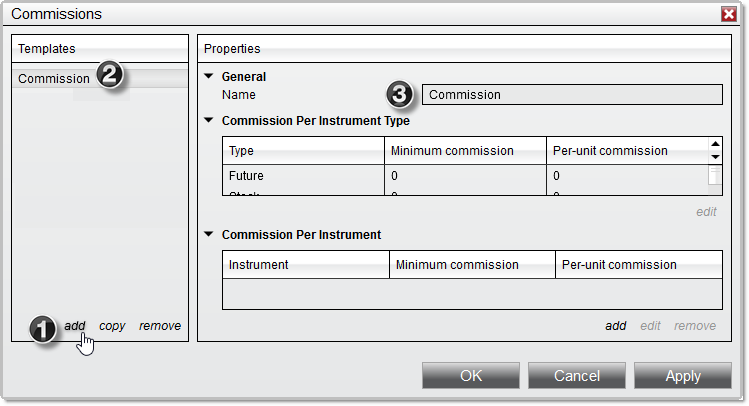
Open Control Center > Tools > Commissions inside NinjaTrader Desktop on your VPS. Create a named template for the rates you want to test. Then select it in the place that produces your results. A local Sim101 practice session uses the account’s commission setting. A historical backtest in Desktop 8.1.4 or later has its own template selection in Strategy Analyzer.
We host NinjaTrader Desktop on Windows, so you can set up the template on your VPS and return to that same installation from a PC, Mac, phone or tablet. Keep the template name and rates with your test notes so you can reproduce the comparison from any of those devices.
Enter the rate for one side of the trade#
Start with the current fee schedule for the account and instrument you want to model. Record the currency, effective date and which fees the figure includes. A round-turn quote covers both entry and exit. If the schedule quotes a round turn, confirm the per-side amount before entering it. Your broker’s statement is the reference for actual charges.
- In Tools > Commissions, select add under Templates, or select an existing template and choose copy. Give the new template a name you can recognize later, such as Futures practice – November.
- For a futures-wide rule, select the futures row under Commission Per Instrument Type and choose edit. Enter the applicable Per-Unit Commission and any Minimum Commission, then choose OK.
- If one instrument uses a different rate, select add under Commission Per Instrument, choose the instrument and enter its amounts. An instrument-specific rule takes precedence over the type rule for that instrument.
- Save the template. Reopen it and check the name and the row that applies to the contract you will test.
NinjaTrader applies the per-unit amount on each side. The minimum is a floor for that side. If the per-unit total already meets the minimum, you use the per-unit total. The illustration above identifies the template name and the two rule grids. NinjaTrader’s commission template guide
Choose where the template applies#
| If you are testing with… | Select the template here |
|---|---|
| Sim101 practice trades | In Control Center > Accounts, right-click Sim101, choose Edit Account, select the named template in Commission and choose OK. Reopen the account to check the selection. |
| A historical Strategy Analyzer backtest | Open New > Strategy Analyzer and select Backtest. In its settings, enable Include commission and select the intended commission template for the run. Keep the instrument, dates and fill settings with your result. |
For the practice path, use the intended local simulation account with live orders and copier routes excluded. If Sim101 is missing from the account list, check local simulation availability. NinjaTrader documents the account assignment in Applying Commission Templates.
For the backtest path, check the selection in Analyzer itself. NinjaTrader moved commission template selection into its settings in Desktop 8.1.4. The inclusion switch controls whether commissions appear in the historical result. NinjaTrader 8.1.4 release notes, item 14466 · Backtest settings
Verify one completed trade#
For a practice account, use a completed simulated round trip recorded after you assigned the template. Open New > Trade Performance, set the dates, choose Generate, filter to the intended account and instrument, and open Trades. The Commission field combines the amounts applied to the entry and exit executions. For a backtest, inspect the result of that Analyzer run. NinjaTrader’s performance displays
Suppose your test has one two-contract futures entry fill and one two-contract exit fill. Use your own rates to check the amount.
| Check | Expected commission |
|---|---|
| Entry side | Multiply the per-contract rate by two. Use the per-side minimum if it is higher. |
| Exit side | Repeat the calculation for the two contracts exiting. |
| Completed trade | Add entry and exit. Compare that sum with the reported commission in currency. |
If the amounts differ, check the instrument-specific row first. Then check whether you entered a round-turn figure as a per-side rate and whether the report used your intended account or backtest template. Save the template name, contract, quantities, expected charge and reported charge with the result. Our Strategy Analyzer guide covers repeatable backtest settings, and our Trade Performance export guide covers saving the account report.
Keep your NinjaTrader test setup in one Windows workspace
With Ninja Mobile Trader VPS, your templates and reports stay in the hosted Desktop installation you use across devices. Our plans include Windows licensing and 24/7 VPS support.