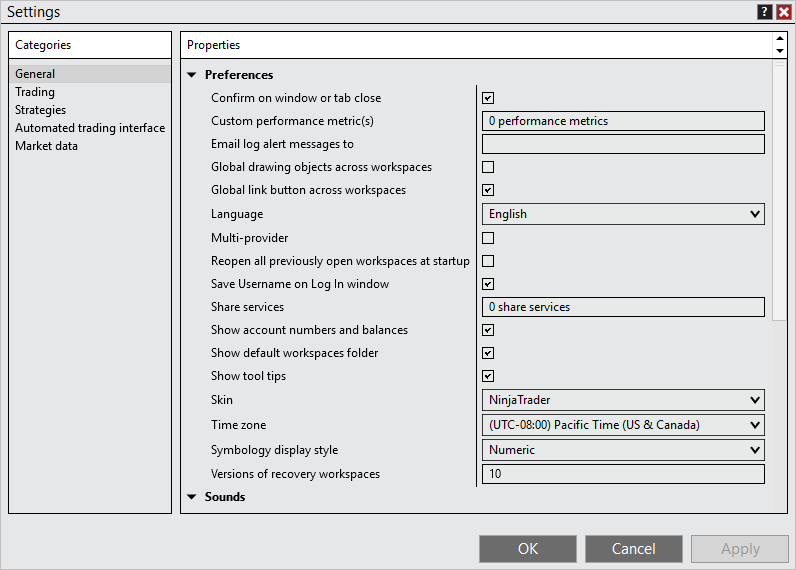
Set NinjaTrader’s display zone in Tools > Settings > General, and check the Windows zone inside your VPS separately. They can differ. Choose the intended reference for your workflow, then verify both settings instead of moving the system clock to make a chart label match.
Ninja Mobile Trader VPS specializes in hosting NinjaTrader Desktop on Windows. Your platform and saved workspace stay in one installation you can reach from supported PCs, Macs, phones and tablets, with Windows licensing included and 24/7 VPS support. Configure that hosted installation, rather than a separate copy on your local device.
The official NinjaTrader illustration above shows the General settings window. Its selected Pacific zone is an example, not a required NMT setting.
Identify which time setting you are checking#
| Setting | What it controls |
|---|---|
| NinjaTrader General time zone | The zone used to display charts and market data. It defaults to the local PC zone. |
| Windows time zone | The Windows time-zone setting in the remote session; inspect it inside the VPS. |
| Trading Hours template zone | The reference zone for the template’s session definitions, which determine included data. |
The platform’s General settings reference describes display time. Its Trading Hours guide describes session filtering. Changing a display zone is not the same task as editing a trading session or holiday.
Before diagnosing an apparent offset, check the chart interval: NinjaTrader labels bars with their closing time. A five-minute bar’s label therefore is not its opening minute.
Record Windows time and its zone#
Open PowerShell inside the VPS and run these read-only commands:
tzutil /g
Get-Date -Format "yyyy-MM-dd HH:mm:ss K"
Microsoft documents tzutil /g as the current zone ID and Get-Date’s format fields for the date, time and UTC offset. Save the results with the NinjaTrader zone shown in General.
Plan any setting change around working orders, positions, strategies, copiers and tools that relaunch NinjaTrader. Use planned downtime for changes and the platform restart.
If you intend to change Windows’ zone too, first list valid IDs with tzutil /l. During the planned change, use tzutil /s with the exact quoted ID. For example, this selects U.S. Pacific time:
tzutil /s "Pacific Standard Time"
tzutil /g
Use that example only if Pacific is your intended zone. The readback confirms the selected ID; it does not prove clock accuracy or validate trading behavior. If the change is denied or does not persist, contact NMT support with the error and current ID.
Change NinjaTrader’s zone during planned downtime#
Review time-based settings before resuming: NinjaTrader explicitly says its zone selection also affects Auto Close Position when enabled. Follow each custom tool’s documented time basis.
Use the current NinjaTrader time-zone procedure:
- Open Control Center > Tools > Settings. Older builds and documentation may call this Options.
- Select General, then choose the intended Time zone in the properties.
- Select OK and restart NinjaTrader to apply the change to open charts.
- Reopen General and confirm the saved zone before returning to the workspace.
If you want Windows and NinjaTrader to use the same zone, select the corresponding regional entry in each. A deliberately different display zone is not, by itself, evidence that either clock is wrong.
Check daylight-saving behavior and the result#
Use the intended regional zone rather than assuming a fixed difference between two cities all year. Microsoft documents that appending _dstoff to a tzutil ID disables daylight-saving adjustments where applicable; omit that suffix when you want the zone’s normal adjustment rules.
After the restart:
- Record the Windows date/time and UTC offset again, alongside NinjaTrader’s selected zone.
- Check a known chart timestamp using its bar interval and closing-time convention.
- Verify Auto Close Position and any scheduled strategy or add-on against its intended reference before resuming it.
- For an incident spanning a daylight-saving change, preserve the date and applicable offset for each observation. A repeated local hour needs that extra context.
Keep the chart’s original Trading Hours selection while checking the display zone. For missing bars or an unexpected session boundary, continue with our NinjaTrader chart troubleshooting guide. For a support handoff, use the log and trace collection guide and retain both clock references.
Keep your NinjaTrader workspace together on NMT
Configure your hosted Windows installation once and return to the same Desktop workspace from your supported devices.