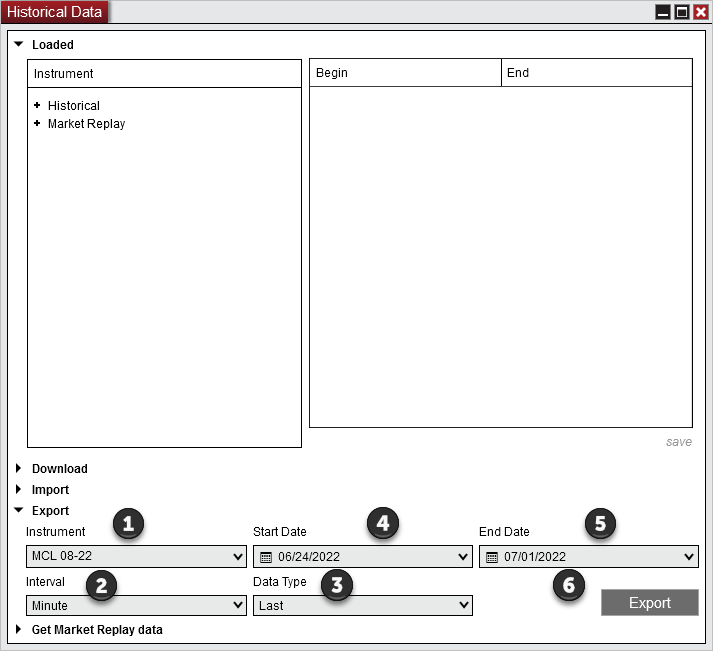
To save historical market prices from your Ninja Mobile Trader VPS, open NinjaTrader Desktop on the hosted Windows machine and choose Control Center → Tools → Historical Data → Export. Select a stored price series and date range, then save the text file in a folder you can find again. You can return to that same Windows folder when you reconnect from another device.
If you need your own fills, account trades or P&L, use the Trade Performance export guide. Historical Data exports instrument prices even for periods when you placed no trades. To preserve a workspace or share custom code, use the backup and restore guide or the NinjaScript package guide.
Choose the series you actually have#
Under Loaded → Historical, expand the instrument, price type and interval to see which dates are stored. For futures, check the contract month. One contract can have minute Last prices for a date without having Bid ticks for that same date. Select a day to inspect its rows using the Historical Data grid.
Suppose you want one-minute bars built from trades. Select Minute and Last. A five-minute chart of the same contract can look different because it combines bars. If the interval or price type you need is missing from the export controls, check the contract and stored history first. Our historical download guide covers obtaining missing data when your provider offers it.
Save the text file on the hosted desktop#
- Expand Export and select the Instrument you checked above.
- Choose the Interval and Data Type. The available intervals are Tick, Minute and Day. The available price types are Ask, Bid and Last. NinjaTrader offers the combinations stored for that instrument.
- Set Start Date and End Date. For a first export, choose a short range that includes a day you already inspected.
- Select Export, choose a folder in the VPS Windows session, and save the
.txtfile. Keep different intervals or price types in separate files so one export cannot overwrite another.
The numbered controls in the illustration come from NinjaTrader’s export reference. The contract and dates pictured are an example.
Check the file before using it for analysis#
Open the saved copy in a text editor. For a Minute / Last export, each row contains a date and time followed by open, high, low, close and volume. The fields are separated by semicolons. NinjaTrader writes UTC timestamps and labels bars by their end time. For example, a one-minute row beginning 20220624 153100 identifies the bar closing at 15:31 UTC on June 24, 2022. Keep the original timestamps when making a local-time copy. Tick and daily rows use their own documented file formats.
| Keep beside the file | What to record |
|---|---|
| Series | Instrument and contract month, interval, and Ask, Bid or Last. |
| Coverage | Requested start and end dates, plus the first and last records actually present. |
| Time and sample | UTC, end-of-bar for bars, and one timestamp and price you checked against the stored series after aligning time zones. |
A requested date range can include days with no stored records. If the sample or coverage differs from what you intended, return to Loaded → Historical and inspect the same contract and series before exporting again. To load the verified file in a second installation, follow the historical text import guide.
Keep your research files with NinjaTrader Desktop
Ninja Mobile Trader hosts your Windows installation so you can return to the same charts and exported data from a supported PC, Mac, phone or tablet.