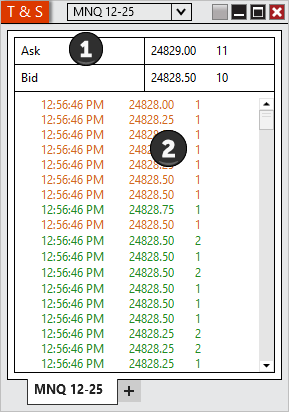
To see futures trades of two contracts or more on your Ninja Mobile Trader VPS, open Control Center → New → T & S in NinjaTrader Desktop. Right-click the new window, open Properties and set Size filter to 2. You can also mark larger trades with a B while keeping the smaller qualifying trades in view. Here’s how to set up both thresholds in the Windows workspace we host. NinjaTrader Time & Sales overview
Set up a tape that shows trades#
- Connect to a data feed that supplies live trades for your instrument. Right-click the Time & Sales window and choose Instruments, or type the symbol while the window has focus. For futures, check the contract month on the tab.
- In Properties, turn on Price - last and turn off Price - bid and Price - ask. This gives you a grid of reported trades. Leave Show quotes on if you also want the current bid and ask in the panel above it.
- Turn on the Time, Price, Volume and Block columns. Set Aggregation (seconds) to 0 so you can check the size of each incoming last-trade tick individually. NinjaTrader Time & Sales properties
In NinjaTrader’s historical MNQ 12-25 illustration above, the ask is 24,829.00 with 11 contracts quoted. The 11 belongs to the quote panel. To read the size of a reported trade, look at Volume in the Last-only grid you just configured. For the quantities resting at several bid and ask prices, use the Level II window. NinjaTrader window layout and illustration
Check which trades appear and which get a B#
Leave Size filter at 2 and set Block alert trade size to 5. With aggregation off and the Block column visible, these example futures trades show exactly where each threshold takes effect.
| Incoming trade size | What you should see |
|---|---|
| 1 contract | The size filter hides the trade. |
| 2 contracts | A row appears. The Block cell stays empty. |
| 4 contracts | A row appears. The Block cell stays empty. |
| 5 contracts or more | A row appears with B in the Block column. |
For a side-by-side check, open a second T & S window on the same contract and feed. Keep the same Last-only display and zero aggregation, but set its Size filter to 1. Watch both windows during the same active interval. A one-contract print can appear on the second tape while the first stays quiet. The row colors are configurable and describe where a trade printed relative to the bid and ask. Read Volume and Block to check the size rules.
Understand rows that share a timestamp#
Several prints can display the same second. In Time display format, use HH:mm:ss.fff to show milliseconds when the feed timestamp supplies that precision. If you turn aggregation on, NinjaTrader can combine volume within the interval when the ticks share both a price and the same relationship to the bid and ask. The combined row uses the first tick’s timestamp. Leave aggregation at zero when you want to examine individual prints. NinjaTrader aggregation and timestamp settings
If the tape seems stuck, move the pointer outside the grid if Freeze on hover is enabled. Then check the size filter and the instrument’s trading session. Outside market hours, NinjaTrader can show a provider snapshot whose first price comes from the previous close. For values attached to a particular chart bar or indicator, use Data Box.
To reuse these settings in new tape windows, choose preset → save in Properties. Save the current workspace to reopen the tape beside your charts. You’ll find related setup instructions in our NinjaTrader VPS guides. NinjaTrader Workspaces menu
Keep your tape and charts in one hosted workspace
Configure NinjaTrader Desktop on our Windows VPS and return to the same workspace from a supported Mac, PC, phone or tablet. Our plans include the Windows license and 24/7 VPS support.