On your Ninja Mobile Trader VPS, open the NinjaTrader Control Center and choose New → Level II. Select an instrument to see its current bid and ask, the quantity quoted at each price, and any individual quotes your feed supplies. The window runs in the Windows workspace we host, so you can set it up on a larger screen and return to it from a supported Mac, PC or mobile device.
Select the instrument and check depth access#
- Connect NinjaTrader Desktop to the data provider you intend to use. For futures, confirm the exchange and contract month. Ask your broker or data provider whether your subscription includes market depth for that instrument. A top-of-book quote can update even when additional price levels are unavailable. NinjaTrader exchange data options
- In Control Center → New, select Level II. Right-click inside the new window and choose Instruments, or type the symbol while the window has focus to open the instrument selector. Check the instrument shown on the tab. NinjaTrader Control Center New menu
- Right-click and enable Show Quotes, Show Summary and Show Details. Start with all three visible so you can trace one price from the quote to its supporting rows.
Read one bid from top to bottom#
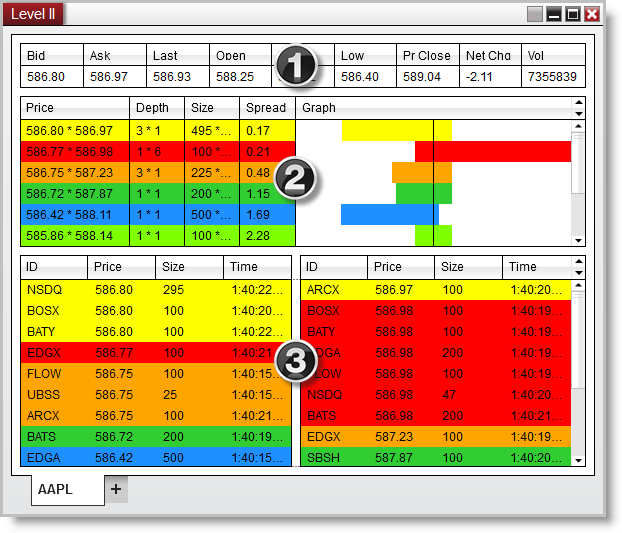
NinjaTrader’s AAPL illustration above is a historical stock example. The numbered sections show three views of the same book. NinjaTrader Level II window reference and illustration
| Section | What to read in the example |
|---|---|
| 1 · Quotes | The best bid is 586.80, the best ask is 586.97, and the last trade was 586.93. The difference between the two quotes is 0.17. |
| 2 · Summary | The first row pairs those prices. Its Depth reads 3 × 1, meaning three contributors on the bid and one on the ask. Size gives the total quantity quoted on each side at those prices. |
| 3 · Details | On the left, three entries bid 586.80 in sizes of 295, 100 and 100. Their sum is 495, the bid size shown in Summary. On the right, one entry offers 100 at 586.97. |
Try the same check on one snapshot of your own window. Pick a bid price, count the visible contributor entries at that price and add their sizes. Compare the count with Depth and the sum with Size. The available detail depends on the instrument and feed. On a moving book, entries can change while you count. A quoted size describes what was displayed at that moment. An execution appears as a trade.
Set up the view you want to reopen#
Right-click the window and open Properties. Set Graph to Size to compare quoted quantities, or Depth to compare contributor counts. The Summary and Details sections each have their own Number of price levels setting. If the book looks shallow, first check that the section is visible and its row limit is high enough. If only the best prices keep updating, verify the selected contract and your provider’s depth permission. A higher display limit cannot add data to the feed.
For stocks, check Size divided by 100 (stocks only) before comparing quantities with another display. Once the layout reads the way you want, choose preset → save in Properties to apply those settings to new Level II windows or tabs. Save your workspace to keep the current window arrangement on your VPS. NinjaTrader Level II properties · Save your NinjaTrader workspace
Our NinjaTrader VPS guides cover the neighboring tools. Use SuperDOM when you need a price ladder with order controls. If you chart futures with Order Flow+ access and a Level II feed, use the Order Flow Market Depth Map to see how received depth changed across chart bars.
Keep your depth window beside your charts
Run NinjaTrader Desktop in one Windows workspace across your supported devices. Our VPS plans include the Windows license and 24/7 VPS support.