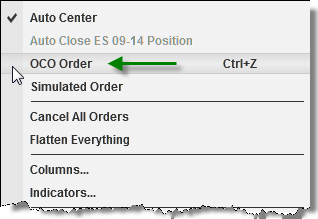
Create a manual OCO pair in SuperDOM, turn OCO mode off, then check the orders’ matching identifiers. One-cancels-other links the orders so that filling or cancelling one triggers cancellation of its companion.
Practice inside your Ninja Mobile Trader VPS. We host NinjaTrader Desktop on Windows, giving you the same installation across supported PCs, Macs, phones and tablets, with Windows licensing included and 24/7 VPS support.
Choose manual OCO or an ATM template#
| Task | Use |
|---|---|
| Link two manually entered orders for cancellation | Manual OCO |
| Generate stops and targets from an entry fill | An ATM template |
ATM stop and target orders are automatically OCO-linked. Our ATM template guide covers that separate setup.
For this exercise, select None in the ATM Strategy list. As NinjaTrader’s selection-mode reference explains, that prevents an entry fill from generating ATM stops and targets.
Prepare an isolated simulation exercise#
Use our Sim101 setup guide to confirm simulation, streaming data and the intended account. Start with no open orders or position for the practice instrument. Exclude the account from live-account copiers and automated strategies.
Use a larger screen for the first rehearsal. Confirm the account, instrument, quantity and mouse mapping in our SuperDOM guide. Prepare two practice limit orders at prices that will not execute immediately; the goal here is to inspect and cancel a pair.
Create the pair, then leave OCO mode#
- Begin with OCO mode off. Right-click inside SuperDOM and select OCO Order. The OC indicator turns green.
- Enter the two intended simulation orders, checking the account and instrument before each submission.
- Turn OCO Order off after the pair.
NinjaTrader documents these controls in Submitting Orders. Its historical menu illustration is shown above; the displayed contract is only an example.
If the first order fills, partially fills or is rejected before you finish, stop the exercise. Inspect the simulation orders and position before submitting anything else.
Verify the relationship in Orders#
Open Control Center > Orders. Show the OCO column through the grid’s Properties if it is hidden. Locate both rows and check:
- The intended account and instrument.
- The same nonempty OCO identifier.
- Each order’s state, filled quantity and remaining quantity.
The Orders tab reference documents these fields and filters. A green OC indicator alone does not establish which orders share an identifier.
Use the Cancel button on one intended order’s row. Check that both rows reach Cancelled. Remove an active-orders-only filter if it hides the completed records. Cancel pending is still a request in progress; NinjaTrader’s state definitions distinguish it from confirmed cancellation.
If an order fills instead, review the position too: cancelling an order does not close an already-filled position.
Start a fresh pair and check live connection behavior#
Do not reuse a consumed OCO identifier. NinjaTrader resets the ID after two orders share it, or after an OCO order is cancelled, rejected or filled. For another exercise, begin a fresh OCO cycle and verify the new pair’s identifier.
Before applying the workflow to a live account, check NinjaTrader’s provider-specific order-location reference. An order can reside at a broker or exchange while its OCO cancellation logic runs locally. The current reference describes most NinjaTrader-connection OCO and Rithmic OCO as locally simulated; other connections support native OCO.
Your VPS hosts that Windows application. It does not convert local OCO handling into server-side OCO, and a simulation rehearsal does not establish your live connection’s behavior.
Keep your NinjaTrader workspace on NMT
Use our Windows VPS to access the same Desktop installation from your supported devices.