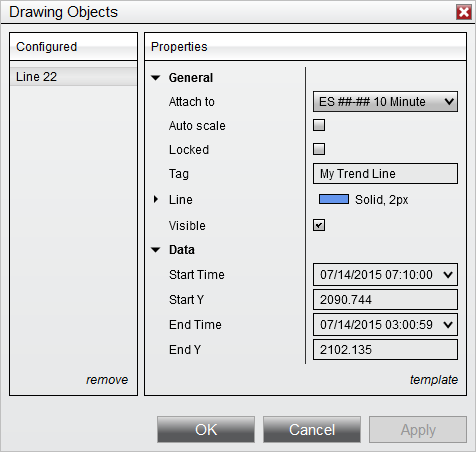
Use a drawing-tool template for a reusable style, or a global object for the same drawing across an instrument’s charts. Make these changes inside your Ninja Mobile Trader VPS. We host NinjaTrader Desktop on Windows, so you can return to the same installation from supported PCs, Macs, phones and tablets, with Windows licensing included and 24/7 VPS support.
Choose what you want to reuse#
| Your goal | Use |
|---|---|
| Repeat a line’s appearance | A drawing-tool template |
| Show one drawing on other charts of that instrument | A global drawing object |
| Reuse chart configuration | A chart template |
| Keep your window arrangement | A workspace |
Chart templates do not include instrument-specific drawings. NinjaTrader’s chart-template reference separates those objects from reusable chart settings. Our workspace and chart-template guide covers the layout side.
Create an object and save its style#
From the chart’s Drawing Tools menu, choose Line and place its anchors. Double-click it for Properties. Select the intended object; edit anchor coordinates under Data, and use Locked to prevent movement.
After choosing its appearance, use template > save, name the style and save. Use template > load on another Line. Templates require the same tool type; they omit coordinates and do not preserve your attachment or lock choices. See NinjaTrader’s drawing-tools reference.
The official Properties illustration above contains historical example coordinates, not current market levels or NMT trading results.
Make the scope intentional#
For a global object, set Attach to to the instrument’s All charts entry. Edits and deletion affect its other appearances. Other charts must match the scale justification of its attached plot.
Across workspaces, check Tools > Settings > General > Global drawing objects across workspaces, documented in the General settings reference.
On a destination chart, open Data Series and select the relevant applied series. Its Show global draw objects switch controls visibility, while Scale justification selects its scale. NinjaTrader documents both in Working with Price Data. For charts with several inputs, our multiple-data-series guide helps you identify the intended series.
Check the result before using the layout#
Use two practice charts of the same futures contract at different intervals. Verify the loaded style and attachment, then inspect both charts after making a test object global. Check readability from your usual device.
Treat this as a layout check, not a trading signal. For drawings you need to position precisely, set them up on a larger screen first.
Save the workspace through Control Center > Workspaces, pointing to the current workspace and choosing save. The Workspaces menu reference documents that command. Reconnect to the same NMT VPS and Windows user to return to that Desktop setup; this is not a procedure for syncing drawings to NinjaTrader’s separate native mobile app.
Keep your NinjaTrader chart setup on NMT
Build your Desktop workspace on our Windows VPS and access it from your supported devices.