A futures chart can jump at rollover because the expiring contract and the next contract traded at different prices. NinjaTrader’s merge policy determines which contract supplies each part of the chart history and whether earlier prices shift. On Ninja Mobile Trader VPS, you make this choice in the Windows installation we host. You can reopen that same research workspace from a Mac, PC or supported mobile device.
Choose the history your question calls for#
| Chart history you need | Choose this policy | How to read the older bars |
|---|---|---|
| A front-month series adjusted across rollovers | Merge back adjusted | NinjaTrader applies rollover offsets to earlier contract prices. An earlier bar can appear at a different level from its original quote. |
| The succession of front months at their original price levels | Merge non back adjusted | NinjaTrader joins the contracts on their rollover dates. A price step can remain where the source contract changes. |
| Only the expiry named on the chart | Do not merge | Every bar comes from that expiry. The earliest available bar can be later than your requested start date. |
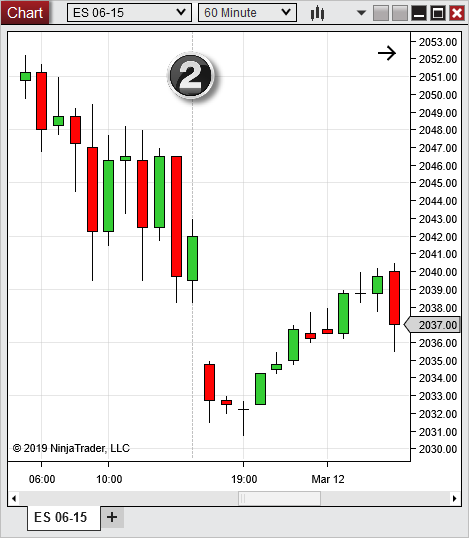
Suppose an older contract printed 98.50 and the applicable rollover offset is +3.00. On a back-adjusted series that earlier price appears as 101.50. On a non-back-adjusted series it stays 98.50. If you select the later expiry with Do not merge, any bar at that timestamp must come from the later contract’s own history. These numbers illustrate the calculation. The chart image shows NinjaTrader’s historical ES example of a gap at the join. NinjaTrader’s illustrated merge policy guide
Find the setting that governs your chart#
In the hosted Control Center, open Tools > Settings > Market data and note Global merge policy. Then open Tools > Instruments, find the futures master instrument and double-click it. In General, inspect Merge policy. Use global settings inherits the platform choice. An explicit policy there governs that instrument across its charts. For a one-instrument comparison, record the original value and use the instrument field so other instruments can keep their settings. NinjaTrader Market data settings and Instrument editor
The editor’s Contract months section gives the rollover date and offset for each transition. The date marks the roll into the listed contract. Read those values when explaining a join. Leave the dates, offsets and provider symbol mapping in place throughout the comparison.
Compare two policies across one rollover#
- Choose a research window when the instrument is clear of active order management. Pick a dated contract and a short period spanning one configured rollover, within the history your provider supplies. Record the provider, expiry, dates, bar interval, price type and Trading Hours template.
- Keep a screenshot of the original chart and note a bar’s timestamp and close on each side of the join. Preserve any local or imported history you need before reloading.
- Set the second policy in the instrument editor, select OK, then reload the research chart with Reload All Historical Data while connected to a provider with historical support. This command replaces stored data for the base interval and affects other charts of the same instrument. NinjaTrader’s reload reference
- Compare the same timestamps with the same chart settings. Record the source expiry on each side and whether an offset applies. Restore the original policy, including Use global settings if that was the starting value, and reload to return your charts to the previous view.
If an old bar disappears with Do not merge, check the selected expiry’s available history first. For missing data, use our historical download and reload guide. If this series feeds a backtest, record the chosen policy with the other assumptions in your Strategy Analyzer baseline.
The merge setting controls historical data. Our NinjaTrader VPS guides cover moving the workspace to the next futures contract, including strategy and copier selections, and checking a provider’s instrument symbol.
Keep your futures research in one NinjaTrader workspace
Return to the same charts and settings across your devices. Our hosted Windows plans include Windows licensing and 24/7 VPS support.