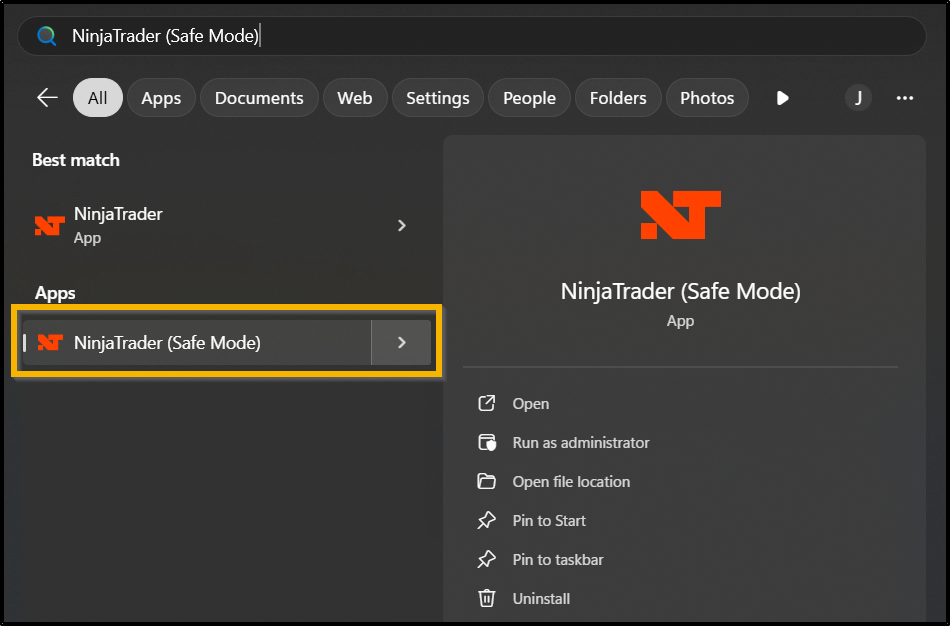
If NinjaTrader freezes when a saved workspace opens, start NinjaTrader (Safe Mode) inside your Ninja Mobile Trader Windows VPS. Test a fresh chart first, then open the workspace that usually produces the problem. Both tests use the same hosted Windows installation, even if you connect to it from a Mac or tablet.
Start Safe Mode and confirm it#
Choose a time when you can close NinjaTrader and leave trading strategies and copiers idle. Write down a symptom you can check twice, such as an ES chart going blank when you switch from five minutes to one minute. For a startup freeze, note the last window that appears.
- Close NinjaTrader Desktop inside the VPS. Stay connected to the remote Windows session.
- Launch the app using either method. From Start, search for NinjaTrader and choose NinjaTrader (Safe Mode). The ordinary app can appear above it in the results. If you prefer the desktop shortcut, hold Ctrl while double-clicking the NinjaTrader icon and keep Ctrl held until the login screen appears.
- Sign in. In the Control Center, open Help → About. Look for Safe Mode beside the version number. If the label is missing, close Desktop and repeat the launch before drawing conclusions.
Safe Mode skips automatic workspace loading, startup broker or data connections, and custom add-ons. A disconnected platform immediately after launch is expected. NinjaTrader’s Safe Mode guide
Compare a fresh chart with the saved workspace#
From Connections in the Control Center, manually connect the data provider you need. Open a new chart for the same instrument and use a built-in interval, such as a one-minute chart, without a custom template, indicator or bar type. If your default template selects a third-party bar type, switch to a built-in interval before interpreting a blank chart.
Repeat the action you recorded. If the fresh chart works, open the affected workspace from Workspaces and try again. Its third-party components are still unloaded. Decline any prompt to save the workspace during this test. Saving it with components missing can overwrite the layout you wanted to diagnose. If the workspace is listed as open but its windows are missing, close it without saving, then reopen it.
| What you observe | What to do next |
|---|---|
| The fresh chart reproduces the problem in confirmed Safe Mode. | Record the version, instrument, interval, connection and time. Give NinjaTrader Support the smallest set of steps that reproduces it. |
| The fresh chart works, but opening the saved workspace reproduces the problem. | Record the workspace name and the first window that misbehaves. In a normal session, build a separately named workspace so you can test the layout while preserving the original. |
| Both work in Safe Mode, but normal startup reproduces the problem. | In a separate normal-mode test workspace, add chart components back one at a time. If one consistently brings the symptom back, send that comparison to its developer. |
Return to normal startup#
Close NinjaTrader, decline workspace saves from the test, and relaunch with the ordinary shortcut. Check Help → About again and confirm the Safe Mode label has cleared. Before resuming your usual workflow, check which workspace, connections and strategies are active. A clean Safe Mode run narrows the search across several startup differences. The one-at-a-time test helps you identify which change matters.
For a support handoff, include your normal-mode and Safe Mode observations together. You can follow the log and trace guide if support requests files. For a specific compiler error, use the NinjaScript compile-error guide. Once a vendor supplies a replacement package, the add-on installation guide covers that step.
Get help with the hosted Windows desktop
If Remote Desktop disconnects or other Windows apps also stop responding, tell our VPS support team when it happened and which apps were affected. For other platform tasks on the same installation, see our hosted NinjaTrader guides.