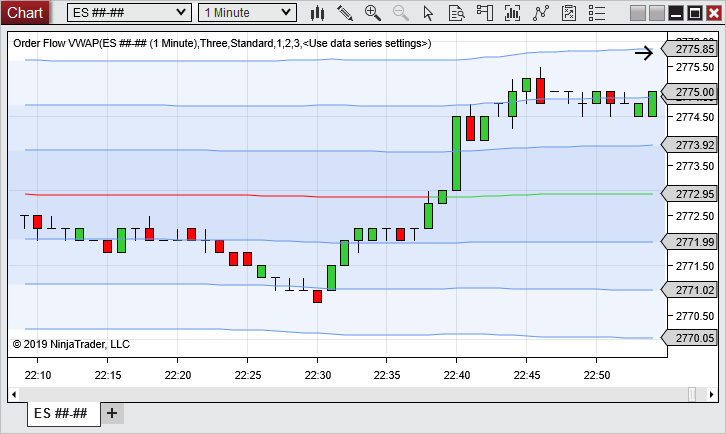
Add Order Flow VWAP through NinjaTrader’s Indicators window inside your Ninja Mobile Trader VPS. Choose the reset period and calculation resolution, then check that the indicator and chart use your intended trading hours.
We specialize in hosting NinjaTrader Desktop on Windows. Your configured charts stay in one installation you can access across supported devices, with Windows licensing included and 24/7 VPS support.
The official NinjaTrader image above is a historical illustration of the VWAP line and deviation bands. Its prices and annotations are examples, not current market data or trading instructions.
Confirm access and add the indicator#
In your NinjaTrader Dashboard, open Settings → Plans and confirm active Order Flow+ access. Follow the current entitlement instructions for your account; do not assume VPS access activates NinjaTrader account features.
Start with a separate chart for the instrument and contract you intend to inspect:
- Right-click an empty chart area and choose Indicators.
- Select Order Flow VWAP from the available list and click Add.
- Select that configured indicator and review its properties.
- Confirm the intended Input series, then apply the settings below and select OK.
NinjaTrader’s indicator guide documents this configuration window. On a chart with several series, checking the input avoids configuring the calculation against an unintended series.
Choose a reset period and compatible resolution#
VWAP combines traded prices and volume into an average for a defined period. NinjaTrader’s VWAP reference provides these combinations:
| Reset interval | Available resolution |
|---|---|
| Session | Standard or Tick |
| Week | Standard |
| Month | Standard |
Standard calculates from the chosen input series. Tick uses a one-tick series and requires more resources. Weekly and monthly resets do not support Tick resolution. Choose the window your analysis requires before adjusting appearance.
For a large chart workspace, use our VPS sizing checklist to assess the full workload. There is no universal chart-count or loading-time promise from selecting one resolution.
Check both trading-hours selections#
For a session reset, review the VWAP indicator’s Trading hours selection. Also right-click the chart and open Data Series to inspect its session template. The indicator cannot calculate outside the chart’s selected hours.
For an initial check, use the same intended template in both places. If you deliberately use a narrower window for the indicator, record that difference. Compare the template’s session boundaries and time zone, rather than assuming “session” means midnight on your local device.
NinjaTrader’s Trading Hours guide explains how templates filter data. Our time-zone guide covers display-zone differences; the chart troubleshooting guide owns missing-bar and holiday checks.
Verify the window before saving#
Load enough chart history to inspect the intended calculation period. The chart’s Data Series controls set the requested range.
Record the instrument, input series, reset period, resolution and both hours selections. Inspect where the plotted calculation starts again against the intended boundary. If it differs, compare those settings before changing several controls together. No order is needed for this check.
NinjaTrader’s VWAP support walkthrough also describes the optional deviation bands and their display settings. Make the line and bands readable after checking the calculation window; changing their appearance does not validate an entry signal.
Use our workspace and chart-template guide to save the layout. Recheck trading hours after loading a template, because its saved settings can take precedence.
Keep your configured NinjaTrader charts together
Return to the same hosted Windows workspace from your supported devices, with Windows licensing included and 24/7 VPS support.