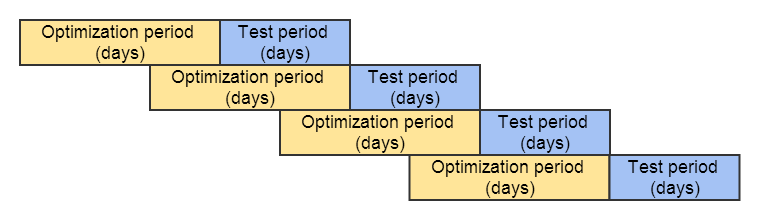
On your Ninja Mobile Trader Windows VPS, open Strategy Analyzer and select Walk Forward Optimization. NinjaTrader chooses strategy inputs using one historical period, then tests those inputs on the period immediately following it. Open the results grid to see how each selection performed on data it had yet to encounter.
Your NinjaScript strategy, historical data and Analyzer logs stay in the hosted Windows installation when you switch from your desk to another supported device. The VPS also does the calculation. If that same machine runs live strategies, plan a research window before starting the job. NinjaTrader on NMT
Choose the two windows before you run#
Imagine you give the optimizer 20 days of history to select inputs and five days to test them. In a rolling run, the training window moves forward for the next selection. The dates below are numbered positions on an illustrative timeline. Use the dates NinjaTrader returns for your instrument and dataset.
| Pass | History used to select inputs | Later history used to test that selection |
|---|---|---|
| First | Days 1–20 | Days 21–25, using the inputs selected on days 1–20 |
| Second | Days 6–25 | Days 26–30, using the inputs selected on days 6–25 |
Days 21–25 serve two purposes. They test the first selection before becoming part of the history available for the second selection. Keep the first result alongside the second, even when the later run chooses different inputs. For a training sample that keeps its original start date and grows with each pass, NinjaTrader provides a separate Anchored Walk Forward Optimization mode. NinjaTrader’s anchored-mode reference
Configure the run in Strategy Analyzer#
- On the hosted desktop, open Control Center > New > Strategy Analyzer. Start with a NinjaScript strategy that completes a single historical backtest using the instrument and history you intend to analyze.
- In Settings, set Backtest type to Walk Forward Optimization. Select the strategy, instrument, bars and overall date range. Include enough history for both windows and for the later segments you want to compare.
- Expand the inputs you intend to vary. Set Min, Max and Increment, then choose the criterion under Optimize on. Our parameter optimization guide explains how to bound that search.
- Enter the training length in Optimization period (days) and the later test length in Test period (days). Set Keep best # results to the number of training candidates you want available for inspection in each period.
- Record the strategy version, instrument, bar settings, trading hours, commissions and fill assumptions. Select Run. Keeping these settings fixed makes comparisons between test periods easier to explain.
NinjaTrader documents the window controls and result fields in its walk-forward instructions.
Read one result row before comparing periods#
In the Optimization Results Grid, pick a test period and read its start date, end date and parameter combination together. That row shows what happened in the later test using inputs selected on the preceding training data. Right-click the row and choose View Optimization Results to inspect the retained training candidates behind that selection.
For the first row in the example, the question is “How did the inputs chosen on days 1–20 perform on days 21–25?” Record the test dates, selected inputs and test result for each row. If one period drives most of the combined result, you can now identify which dates and inputs produced it. Changing the ranges after seeing a disappointing row makes those dates part of your research decisions. Reserve fresh history for a subsequent independent check.
Every row still uses historical data. Real-time fills can differ from the historical fill model. NinjaTrader’s explanation of historical and real-time fills
Give the optimization its own research window#
NinjaTrader uses available CPU cores for optimization. A remote connection from another device still draws on the same server. If you need to manage live orders, schedule the run outside that workload or use a separate research machine. For a memory-constrained run, reducing Keep best # results limits the results retained for later inspection. NinjaTrader’s optimization performance guidance
Size your hosted NinjaTrader research desktop
Compare the strategies, charts and optimization jobs you plan to run together when choosing your Ninja Mobile Trader VPS.