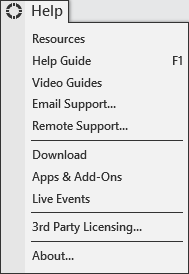
If your charts open after a restart but your broker login is blank or a paid add-on says its license is invalid, open Control Center > Help > About inside your Ninja Mobile Trader VPS. Compare the Machine ID with your previous record. When NinjaTrader detects a change, it clears saved connection credentials. An add-on licensed to the old ID may also need its vendor’s authorization.
Check the Windows installation that runs your trading tools. With our hosted NinjaTrader Desktop, you reach the same installation from a supported Mac, PC, phone or tablet. Switching which device you use to view the VPS still takes you to that hosted copy.
Find out what changed#
In the Help menu shown above, choose About and record the current Machine ID and NinjaTrader version. If you have no earlier ID, check your private activation record or ask the add-on vendor whether the ID on your license matches. A failed login alone can have other causes.
Windows, firmware or driver updates can lead to a new ID. If you recently moved to another server, check the ID on the destination during your migration checks. NinjaTrader’s guide to Machine ID changes
| What you see in the VPS | What to check first |
|---|---|
| A previously working broker connection asks for its credentials again | Open that provider’s saved connection and check its login and account environment. |
| The broker connects, but an installed indicator reports an invalid license | Read the vendor’s license message and check which Machine ID it expects. |
| You cannot reach the Windows desktop | Check the NMT remote connection first. You can inspect NinjaTrader’s ID once Windows opens. |
Restore the affected broker or data connection#
Before reconnecting, check any working orders and positions through your broker. Keep strategies, copiers and automatic recovery paused while you verify the account.
- Inside the VPS, open Control Center > Connections > configure and select the affected entry under Configured. On Desktop 8.1, configure appears when Multi-provider is enabled. If it is missing, check your current connection mode. NinjaTrader’s Multi-provider guide
- Re-enter the credentials for that provider and confirm the assigned environment. If the profile itself is missing, recreate just that connection using the provider’s setup instructions. Our Rithmic and Tradovate guide explains which login and system to use for those accounts.
- Save the settings and choose the connection by name in Connections. Open Control Center > Accounts and match the account and connection to the ones you expect. You can verify both without sending an order. NinjaTrader Accounts tab
Restore a licensed add-on#
If the affected tool is already installed, start with the vendor that issued the license. Use its private support channel or license manager. Give it the product name, your order or license reference, the exact error, and the ID it requests for the hosted copy. Keep your broker password out of that request.
Follow the vendor’s instructions on which ID to supply. For example, FlowBots’ licensing instructions, checked November 25, 2026, say its Machine ID Manager requires the signed ID shown in its license notification for the order you own. The ordinary value from Help > About alone will be rejected there. Other vendors may ask for the About value directly.
After the vendor confirms the change, follow its restart instructions and reopen the affected indicator on a chart with automation still paused. Check that the license warning has cleared and the indicator loads. If the package is actually missing, use our NinjaScript installation guide for that separate step.
Once your saved credentials work again, we recommend Ninja Watchdog for later supported Rithmic or Tradovate feed interruptions. It can reconnect the account, wait for live data and restore interrupted strategies.
Need help getting back into your NMT desktop?
Our VPS support team is available 24/7. Tell us which device you are connecting from, when Windows access last worked and the message you see.