Run Interactive Brokers Trader Workstation (TWS) and NinjaTrader Desktop inside the same Windows VPS. Sign in to TWS in Paper Trading mode, connect NinjaTrader to that session, then look for your IBKR paper account in the Control Center. You can verify both the account and its market data with the API set to read-only.
With our hosted NinjaTrader Desktop, both programs stay in one Windows installation. You can return to that workspace from a supported Mac, PC, phone or tablet. The local address you enter in NinjaTrader points to TWS on the VPS, even when you access Windows from another device.
Check your account and install the supported TWS version#
As of November 24, 2026, NinjaTrader specifies TWS 10.37.1l (the last character is a lowercase L). Use the installer linked in its current connection guide. A standard TWS download can update to an unsupported version. NinjaTrader lists IB Gateway as incompatible with its current Desktop connection. NinjaTrader’s Interactive Brokers connection guide
You need an active IBKR live brokerage account with valid credentials, access to its paper environment, and NinjaTrader’s Multi-Broker Account Add-on. The add-on is required for both paper and live IBKR accounts to appear. NinjaTrader requires Desktop 8.0.28.0 or later and recommends its current 8.1 release. On 8.1.1.0 or later, enable Multi-provider under Control Center > Tools > Settings > General. Change modes between trading sessions. If you previously opted into server-side ATMs, enabling Multi-provider switches NinjaTrader to local ATMs. NinjaTrader Multi-provider settings
Open the IBKR paper session on the VPS#
- Launch the supported TWS build manually on the remote desktop. Select Paper Trading, complete the IBKR sign-in and confirm the paper environment in TWS. Leave strategies and copiers disabled for this check.
- In Mosaic, open File > Global Configuration. In Classic TWS, use Edit > Global Configuration. Open API > Settings and enable ActiveX and Socket Clients. Keep Read-Only API enabled so the connection can read account information and prices without sending orders.
- Apply the other settings in NinjaTrader’s guide. Enable downloading open orders on connection, including FX positions in the portfolio, sending status updates and sending forex data in integer-unit compatibility mode.
- Record the Socket port displayed for this paper session, then click OK. The usual TWS defaults are 7497 for paper and 7496 for live. IBKR saves these settings separately. Your TWS login selects the account environment. The port tells NinjaTrader where to find that session. IBKR’s paper and live socket settings
Add the connection in NinjaTrader#
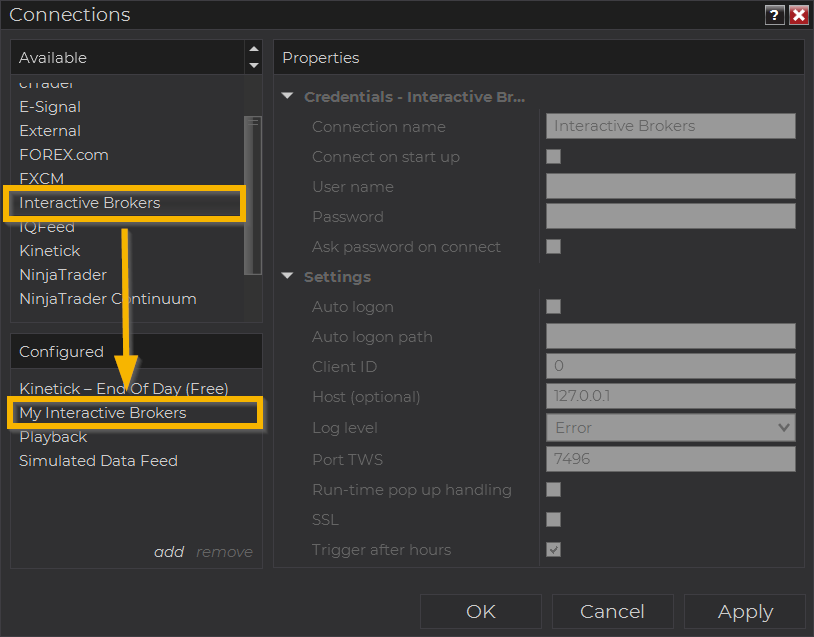
In Control Center > Connections > configure, double-click Interactive Brokers in the available list. Select the new entry in the configured list and give it a recognizable name such as IBKR Paper. The NinjaTrader illustration above shows where the entry appears and displays the live default of 7496. For this paper check, enter the port you recorded in TWS.
| Connection property | Value for this check |
|---|---|
| Host | 127.0.0.1, the local address inside the VPS |
| Port TWS | The socket port displayed in your active TWS paper session |
| Client ID | Leave the default 0 unless support directs a change |
| Auto logon | Leave off. Start TWS and sign in to paper manually. |
With TWS already signed into paper, you can leave the optional username and password fields blank for manual entry. Keep the time zones in TWS and NinjaTrader aligned so their timestamps agree. Save with OK, reopen Connections, and select IBKR Paper.
Verify the account and the quote separately#
- Connection and account. Look for a green indicator beside IBKR Paper, then open Control Center > Accounts. Match the IBKR account shown there to the paper account in TWS. Seeing only Sim101 identifies NinjaTrader’s local simulator. If the IBKR row is missing, recheck the TWS login and the Multi-Broker add-on.
- Market data. With IBKR as the only connected market-data provider for this check, open an instrument covered by your IBKR subscription during its trading session. Look for an updating price. IBKR says its free delayed feed cannot supply quotes to NinjaTrader. If the account appears but prices are blank, check the subscription for that exchange and API access with IBKR. If other feeds are active, a moving chart alone cannot identify its provider. IBKR’s NinjaTrader integration FAQs
If the connection is refused, confirm that TWS is running in the VPS, socket clients are enabled, and the two port values match. If it still fails, copy the exact message and time from Control Center > Log. Contact NinjaTrader for connection or add-on errors, IBKR for paper login or exchange permissions, and NMT for access to your hosted Windows desktop. For an evaluation account supplied through another provider, follow our Rithmic and Tradovate connection guide.
Run TWS and NinjaTrader in one Windows workspace
Our VPS plans include Windows licensing and 24/7 VPS support. Compare the available CPU and memory for the two applications and the charts you use.